
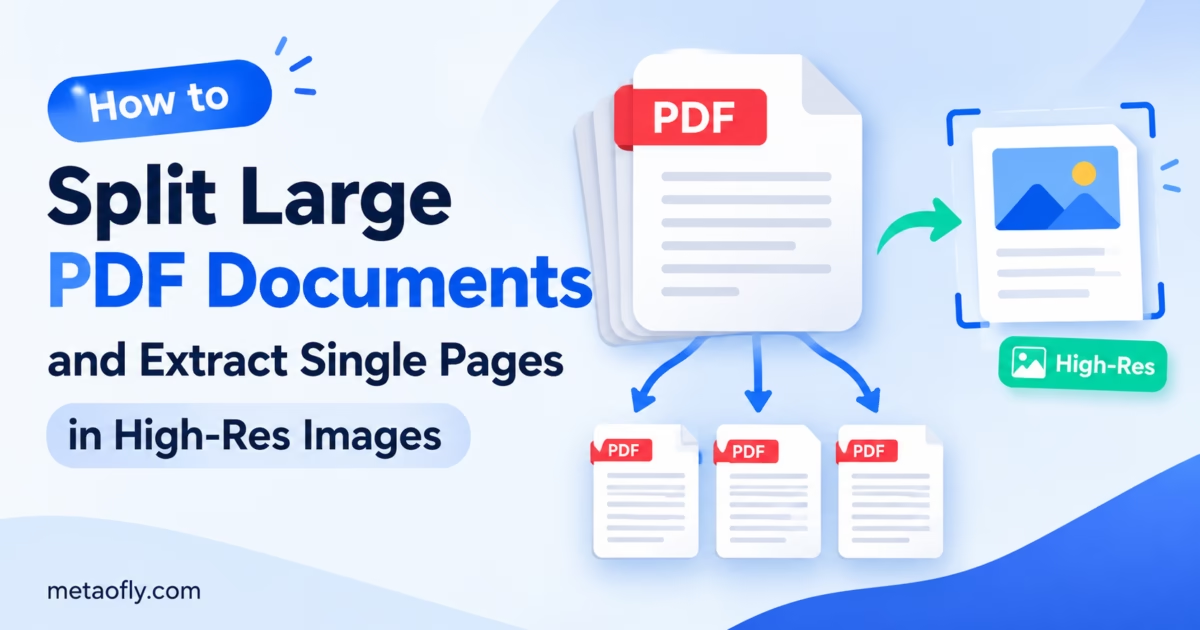
Editorial Technical Solution: Architects, graphic designers, and content creators frequently need to isolate individual pages from massive multi-page PDF documents and convert them into standalone high-resolution image files for presentations, portfolios, and social media. The ability to extract pages from pdf to image free eliminates dependence on expensive Adobe Acrobat licenses and privacy-compromising cloud conversion services. MetaoFly PDF Suite renders each page at configurable DPI resolutions directly within your browser’s canvas engine with zero server uploads.
Professional workflows across architecture, publishing, education, and marketing frequently require extracting individual pages from large PDF documents and converting them into standalone image files suitable for presentation slides, portfolio websites, social media campaigns, and print collateral. Whether you need a single blueprint page as a high-resolution PNG for a client presentation, or individual product catalog pages as JPGs for Instagram carousel posts, the ability to extract pages from pdf to image free is an essential productivity capability that most paid software suites charge monthly subscription fees to provide. MetaoFly PDF Suite delivers this capability permanently in your browser without cost.
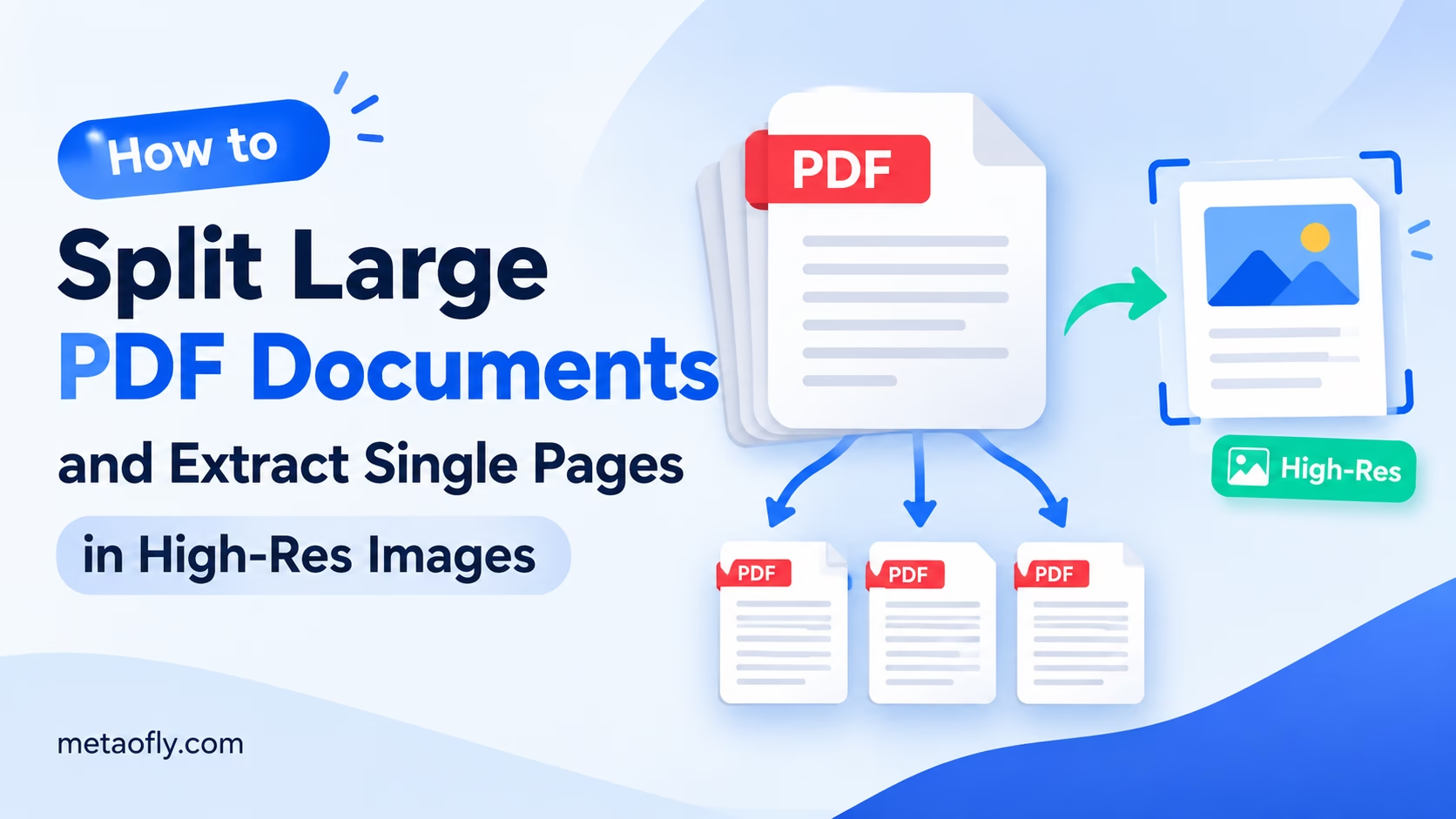
MetaoFly PDF Suite
Split multi-page PDFs and extract individual pages as high-resolution PNG or JPG images. Configurable DPI, batch export, and zero server uploads. This Extract Pages from PDF capability ensures professional results every time.
Extract Pages from PDF: The Extraction Bottleneck: Why Taking Screenshots of Multi-Page PDFs Destroys Visual Clarity
The most common workaround for extracting PDF pages as images is the manual screenshot method. Users open the PDF in a viewer application, zoom to fit the page on screen, and press Print Screen or use a snipping tool to capture the visible area as a raster image. This approach produces consistently poor results for several fundamental technical reasons that affect every downstream use of the captured image.
Screen capture resolution is permanently limited to your display’s physical pixel density. A standard 1920×1080 monitor captures approximately 96 DPI, while professional print workflows require 300 DPI minimum for acceptable sharpness. The resulting screenshot contains barely one-third of the pixel data needed for sharp print reproduction, making it unusable for any professional print application including client presentations, portfolio books, and marketing collateral.
This Extract Pages from PDF capability ensures professional results every time.
Additionally, screenshots capture your display’s rendered interpretation of the PDF, not the original document data. Any anti-aliasing, color management translations, gamma curves, or resolution scaling applied by your PDF viewer application and operating system becomes permanently baked into the captured image at reduced resolution. Text that appeared crisp in the original vector PDF becomes irreversibly rasterized at screen resolution with visible aliasing artifacts along character edges.
This Extract Pages from PDF capability ensures professional results every time.
Professional page extraction requires direct rasterization from the PDF content streams at configurable DPI settings, bypassing the display rendering pipeline entirely. This is precisely what MetaoFly PDF Suite provides. The WebAssembly rendering engine interprets the original PDF page data including vector paths, embedded fonts, and image streams, then rasterizes the complete page composition at your specified resolution, producing images that are mathematically identical to what a commercial printer would output from the same source file.
This Extract Pages from PDF capability ensures professional results every time.
Furthermore, screenshots cannot capture pages that extend beyond the visible screen area without scrolling and stitching multiple captures together, introducing visible seam artifacts and alignment inconsistencies. Direct PDF-to-image extraction renders the complete page at full resolution in a single operation regardless of the page dimensions or your display size.
This Extract Pages from PDF capability ensures professional results every time.
Rasterization vs Direct Stream Extraction: Preserving Vector Line Art and Typography
PDF documents contain two fundamentally different types of visual content: vector objects including text characters, line art, paths, and geometric shapes, and raster objects including photographs, scanned images, and bitmap graphics. The extraction method used dramatically affects output quality depending on which content type dominates the page being extracted.
This Extract Pages from PDF capability ensures professional results every time.
Vector content like text characters, technical drawings, architectural line work, and illustration paths is defined mathematically in the PDF content stream using Bezier curves and coordinate transformations. When rasterized at high DPI settings, these mathematical definitions produce pixel-perfect edges at any resolution without quality ceiling. A text character rasterized at 300 DPI will be approximately nine times sharper than the same character captured via a 96 DPI screenshot, with crisp edges and precise weight rendering.
This Extract Pages from PDF capability ensures professional results every time.
Raster content like photographs, scanned documents, and bitmap graphics is stored at a fixed pixel resolution within the PDF file. Extracting these embedded images at a DPI higher than their native embedded resolution does not create additional visual detail, but it does ensure the image maintains its original quality level rather than being downsampled by screen capture compression artifacts. The raster content renders at its native quality within the context of the full-page composition.
This Extract Pages from PDF capability ensures professional results every time.
MetaoFly PDF Suite’s WebAssembly rendering engine handles both content types optimally in a single rendering pass. Vector paths are rasterized at the full specified DPI resolution with anti-aliased edges, while embedded raster images are extracted at their native resolution or the requested DPI, whichever produces the better result. This intelligent dual-mode handling ensures maximum visual quality without creating artificially inflated file sizes through unnecessary upsampling of raster content. According to MDN Web Docs on the Canvas API, the HTML5 Canvas rendering pipeline used by MetaoFly provides hardware-accelerated rasterization on all modern browsers.
Key Takeaways
- Screenshots capture at 96 DPI while professional print requires 300 DPI minimum resolution.
- Vector text and line art rasterize at any DPI without quality ceiling or detail loss.
- Embedded photos maintain their native resolution regardless of extraction DPI setting.
- MetaoFly renders directly from PDF content streams, bypassing display rendering limitations.
- A single rendering pass handles both vector and raster content types optimally.
- Hardware-accelerated Canvas API provides fast extraction even for complex page compositions.
How to Extract Pages From Pdf To Image Free: Extracting Targeted Page Ranges from Large Catalogs
Large document workflows frequently require extracting specific page ranges rather than processing entire documents. A 500-page product catalog may contain only 13 pages of interest for a particular marketing campaign. Processing all 500 pages wastes time, storage space, and computing resources while creating unnecessary files that clutter your project directory.
MetaoFly PDF Suite provides precise page range selection through its visual thumbnail interface. After loading a PDF document, the suite generates thumbnail previews of every page and displays them in a scrollable grid. You can select individual pages by clicking their thumbnails, select contiguous ranges by holding Shift and clicking the first and last pages, or select non-contiguous pages by holding Ctrl and clicking multiple individual thumbnails throughout the document.
Selected pages are queued for extraction and displayed in a highlighted preview panel where you can verify your selection before executing the batch conversion. This visual confirmation step prevents the common error of extracting the wrong page range from a lengthy document, which wastes processing time and requires repeating the operation.
For documents with complex structures including table of contents, appendices, and index pages, the thumbnail preview allows rapid visual identification of the exact pages needed without manually counting page numbers. This visual selection method is significantly faster and more accurate than typing page number ranges into a text field, especially for documents where the printed page numbers do not match the PDF’s internal page numbering.
Step-by-Step Blueprint: Splitting and Converting PDF Pages into Lossless PNGs with MetaoFly
The complete workflow to extract pages from pdf to image free using MetaoFly PDF Suite combines precision page selection with configurable high-resolution output for professional results across all use cases.
Step 1: Load Your PDF Document into MetaoFly PDF Suite
Open MetaoFly PDF Suite in your browser and drag your PDF file into the upload zone. The WebAssembly engine parses the document structure, reads the cross-reference table, and generates thumbnail previews of every page. Large documents with hundreds of pages may require several seconds for complete thumbnail generation, with a progress indicator showing the current processing status.
Step 2: Select Pages for Extraction Using the Thumbnail Grid
Click individual page thumbnails to select them for extraction. Use Shift plus Click to select contiguous page ranges. Use Ctrl plus Click to add non-contiguous individual pages to your selection. Selected pages display a highlighted purple border in the thumbnail grid for clear visual identification of your current selection.
Step 3: Configure Output Resolution and Format
Select your target output format: PNG for lossless quality with full alpha transparency support, or JPG for smaller file sizes suitable for web publishing, social media, and email distribution. Set the DPI resolution based on your intended output: 150 DPI for web and screen display, 300 DPI for standard print production, or 600 DPI for archival quality and large-format print applications where maximum detail preservation is critical.
Step 4: Execute Batch Extraction
Click the extract button to begin batch processing all selected pages. The WebAssembly engine renders each selected page at your specified DPI resolution using the Canvas API and converts the rendering to your chosen image format with optimized encoding parameters. A progress indicator displays the current page being processed and the estimated time remaining for the batch.
Step 5: Download Extracted Images
When batch processing completes, download all extracted images as individually named files. Each file is named with the original document name and page number in the format DocumentName_Page_001.png for easy organization and correct alphabetical sorting. The entire extraction pipeline operates in your local browser memory with zero server uploads at any stage.
Batch Export Configurations: Naming Rules, DPI Selection, and Transparent Backgrounds
Advanced extraction workflows require consistent file naming conventions for integration with digital asset management systems, content management platforms, and automated publishing pipelines. MetaoFly PDF Suite names exported files using the sequential pattern DocumentName_Page_001, DocumentName_Page_002, and so on. This zero-padded sequential naming convention ensures correct page ordering when files are sorted alphabetically in file managers, design applications, and media libraries.
DPI selection should match your intended output medium precisely. For social media content, blog featured images, and web publishing, 150 DPI produces images that display crisply on both standard and Retina screens while maintaining manageable file sizes under 2MB per page. For print portfolios, client presentations, and marketing collateral, 300 DPI provides the standard commercial print quality threshold. For additional image optimization before web publishing, use the MetaoFly Image Converter and Compressor to reduce file sizes while preserving visual quality.
For architectural drawings, engineering schematics, and technical illustrations where maximum detail preservation is critical, 600 DPI extraction captures fine line weights, small annotation text, and precise dimensional callouts with complete clarity. Note that 600 DPI extraction produces significantly larger files, typically 8MB to 15MB per page depending on content complexity and color depth, so ensure sufficient local storage before extracting large page ranges at this resolution.
PNG format supports alpha transparency, which is valuable when extracting pages that have transparent backgrounds for compositing into presentation templates, slide decks, or layered design compositions. JPG format does not support transparency but produces files approximately 60 percent smaller than equivalent PNG exports, making it the preferred format for bulk web content production and email distribution where file size efficiency matters more than transparency support.
Troubleshooting Corrupted PDFs: Fixing Scanned Sheets and Embedded Font Encoding Glitches
Scanned PDF documents occasionally contain corrupted image streams caused by scanner hardware errors, interrupted scan sessions, power fluctuations during scanning, or lossy re-compression cycles applied by document management systems. When MetaoFly PDF Suite encounters a corrupted page stream, it attempts automatic error recovery by re-parsing the content stream from the nearest valid data boundary and rendering all recoverable content.
Embedded font encoding issues can cause garbled text rendering in extracted images. This typically occurs with PDF documents created by older word processors, legacy publishing systems, or government document generation systems that used non-standard font encoding tables or proprietary character mapping schemes. If extracted text appears garbled while images and geometric elements render correctly, the source PDF contains font encoding defects that affect all extraction tools equally.
For PDFs protected with owner passwords that restrict printing, copying, and extraction permissions but allow viewing, MetaoFly PDF Suite respects these document permission restrictions as specified by the PDF security model. Documents with user passwords that prevent opening entirely require the correct password to be entered before any processing can begin. This behavior complies with the PDF specification’s security model and ensures document authors’ access control intentions are honored.
MetaoFly PDF Suite: Unrestricted Browser Utility for Daily Document Workflows
MetaoFly PDF Suite provides the complete document manipulation toolkit that professionals need to extract pages from pdf to image free without subscription costs, usage limits, or privacy compromises. The WebAssembly processing engine handles documents of any size entirely within your browser’s local memory, ensuring your content never traverses external servers or cloud storage systems.
Whether you are extracting individual blueprint pages for client presentations, splitting product catalogs into social media assets for MetaoFly Social Media Image Resizer formatting, or converting contract pages into archival image records, MetaoFly PDF Suite delivers production-grade results in seconds. Access the full suite instantly in any modern browser with zero account registration and zero software installation required.
Archival and Compliance Use Cases: Converting PDF Records to Permanent Image Formats
Regulatory compliance frameworks across healthcare, financial services, legal, and government sectors frequently require document conversion to archival image formats for long-term retention in records management systems. Converting PDF documents to high-resolution PNG or TIFF images creates format-independent records that can be viewed on any system without requiring PDF rendering software, ensuring permanent accessibility regardless of future software ecosystem changes.
Healthcare organizations subject to HIPAA retention requirements use PDF-to-image extraction to convert medical records, diagnostic reports, and patient correspondence into image formats compatible with their electronic health record systems. Many legacy EHR platforms accept image uploads but cannot natively render PDF attachments, making image extraction a necessary step in the document digitization workflow for medical practices transitioning from paper-based record keeping.
Legal firms performing document discovery and production frequently extract individual pages from large PDF collections to create exhibit packages for litigation. Each exhibit page must be numbered, labeled, and produced as a standalone file that opposing counsel can reference independently. MetaoFly PDF Suite’s sequential naming convention with zero-padded page numbers produces exhibit-ready files that maintain correct ordering when sorted alphabetically in document review platforms and court filing systems.
Financial institutions extract individual statement pages and transaction records from consolidated PDF reports for audit documentation and regulatory filing requirements. The extracted images serve as immutable records that cannot be accidentally modified, unlike editable PDF files that retain their text and form field data. This immutability is a key compliance benefit of the PDF-to-image extraction workflow for organizations subject to SOX, FINRA, and SEC documentation requirements.
Educational institutions use PDF page extraction to create visual teaching materials from textbook chapters, research papers, and course documentation. Individual pages extracted as high-resolution images can be directly embedded in presentation slides, online course modules, and learning management system content without requiring students to install PDF viewing software on their personal devices. The extracted images display consistently across all operating systems, browsers, and mobile devices used in diverse educational environments.
MetaoFly PDF Suite supports all of these archival and compliance extraction workflows with zero server involvement. The client-side architecture ensures that sensitive patient records, financial data, legal documents, and educational materials remain exclusively within your browser’s local memory throughout the extraction process. When you need to extract pages from pdf to image free of charge and free of privacy compromises, MetaoFly PDF Suite provides the production-grade capability required for enterprise compliance workflows.
Extract High-Resolution Pages from Any PDF Instantly
Split large documents, extract individual pages as crisp PNG or JPG images at configurable DPI, and organize your document workflows with zero cloud uploads. Permanent, unrestricted access.