
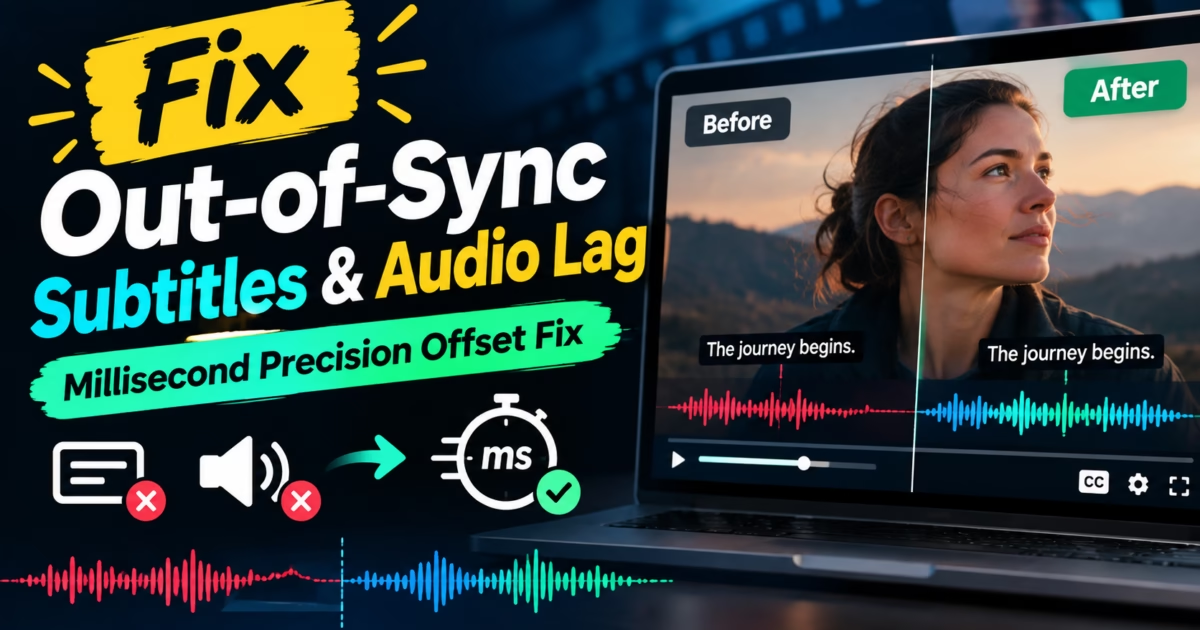
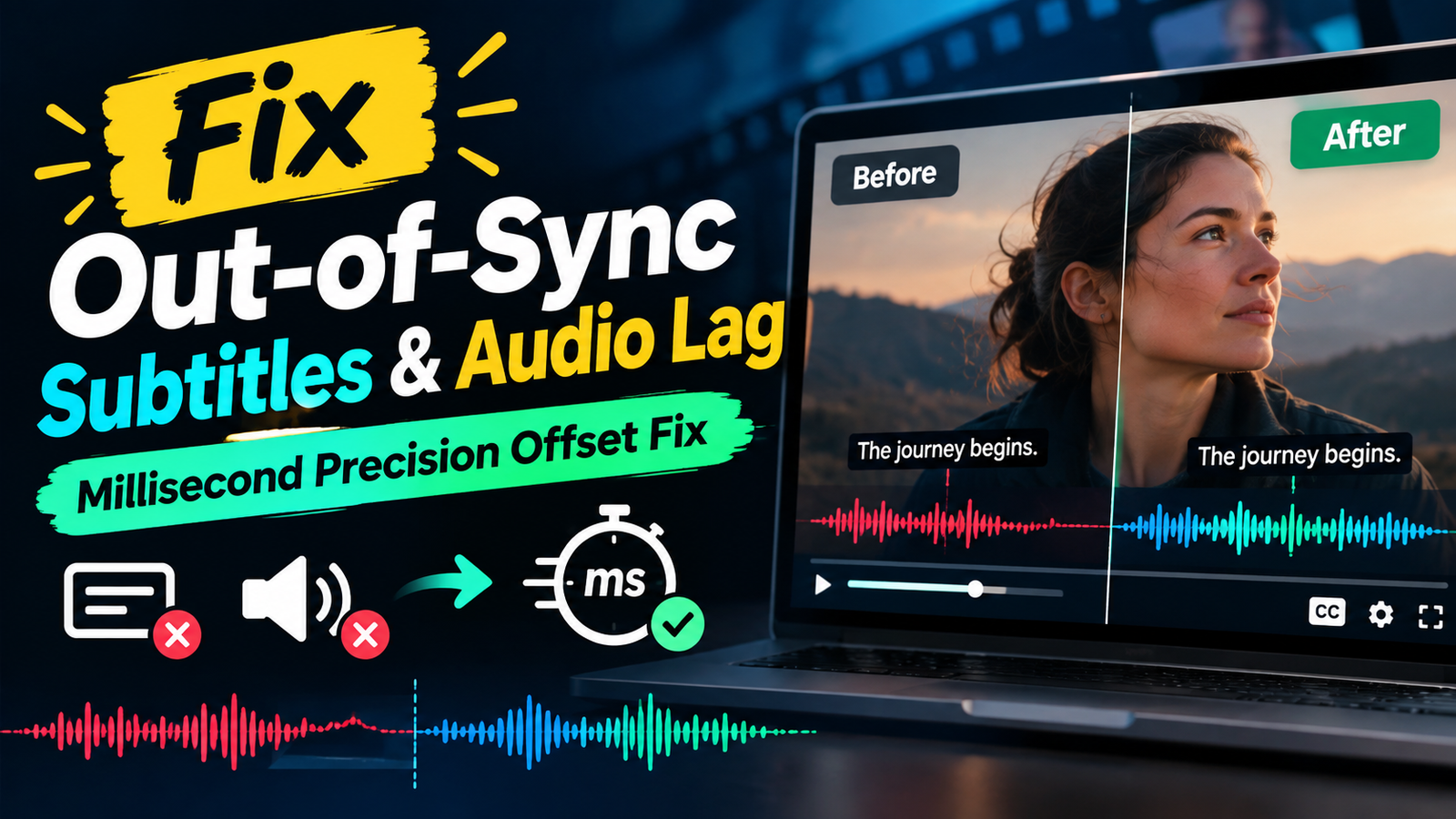
Editorial Technical Solution: When you need to Fix Audio Video Desync and eliminate subtitle lag on Windows 11, millisecond-precision audio delay calibration is essential. Specifically, this guide explains why Bluetooth audio latency, variable frame rates (VFR), and mismatched container timestamps cause actors’ lips and dialogue to drift out of sync. In addition, we review how Piludi Media Player delivers instant keyboard-driven millisecond synchronization without re-encoding your video files.
When you need to Fix Audio Video Desync while watching high-definition films on Windows 11, nothing ruins cinema immersion faster than a voice lagging half a second behind an actor’s lips. You settle in to enjoy a 4K MKV blockbuster or an international foreign-language film, only to discover that punches sound before they connect, dialogue arrives prematurely, or subtitles flash on the screen seconds after lines are spoken. Conventional wisdom suggests running the video through a video editor or transcoding software. However, re-encoding a 20GB video takes hours, generates severe generational quality loss, and fails to solve hardware-induced latency.
The Physics of Desynchronization: Why Audio Drifts from Video Streams
To correct audio and subtitle timing errors effectively, you must understand the technical architecture governing digital multimedia playback under the ITU-R BT.1359 Audio-Visual Synchronization Standard.
Digital video containers (such as MKV, MP4, and WebM) multiplex distinct elementary streams together: an H.264/HEVC video stream, an AC3/AAC audio stream, and an SRT subtitle stream. Each packet contains Presentation Time Stamps (PTS). Under perfect conditions, the media player’s master clock aligns these timestamps seamlessly. However, synchronization routinely breaks down due to three widespread issues:
- Bluetooth A2DP Audio Buffer Latency: Wireless headphones and soundbars introduce between 120ms and 280ms of transmission lag. The video frames display immediately on your 144Hz monitor, but the audio packets queue up in the Bluetooth buffer.
- Variable Frame Rate (VFR) Drift: Smartphone recordings, Zoom lectures, and gameplay clips often capture at variable frame rates. When played through players that assume Constant Frame Rate (CFR), audio drift compounds progressively over time.
- Framerate Mismatches in Subtitle Files: Subtitles timed for a 23.976 FPS cinema master will drift significantly when loaded over a 25.0 FPS European broadcast rip.
Why Re-Encoding Video Files in an NLE Is a Waste of Time
Many users mistakenly assume they must load the desynchronized file into Premiere Pro, DaVinci Resolve, or Handbrake to manually shift the timeline.
This approach is severely counterproductive. Re-encoding a 4K 10-bit HDR movie consumes immense CPU and GPU cycles, alters color grading look-up tables, and permanently bakes an offset that may only exist on your specific Bluetooth audio output. Furthermore, if you switch back to wired speakers or a TV soundbar, the newly rendered file will now play completely out of sync in the opposite direction.
The correct engineering solution is Real-Time Dynamic Clock Shifting directly within your desktop media player. By advancing or delaying the audio or subtitle renderer by discrete 50ms increments on the fly, you achieve instantaneous lip-sync harmony without touching the underlying media file.
Subtitle Encoding Challenges: Resolving UTF-8 vs ANSI Gibberish
In addition to timing delays, foreign-language film enthusiasts frequently encounter corrupted subtitle text where accented letters or Asian characters display as strange symbols or question marks. This problem stems from legacy character encoding mismatches.
Older `.srt` files downloaded from online communities often use legacy regional codepages such as Windows-1252 (Western European), Windows-1251 (Cyrillic), or Shift-JIS (Japanese). When modern media players default strictly to UTF-8 without heuristic detection, text decoding fails. Piludi Media Player incorporates an intelligent Unicode character autodetection engine. It analyzes byte order marks (BOM) and text frequency tables to decode subtitles accurately, preventing character corruption while maintaining tight millisecond sync.
Windows 10 & 11 High-Performance Player
Achieve Perfect Lip-Sync Harmony with Piludi Media Player
Calibrate audio track delays and external subtitle offsets with real-time millisecond hotkeys. Enjoy buttery-smooth 4K 60FPS playback, zero external codec packs, and local privacy on your PC.
Step-by-Step Blueprint: How to Fix Audio Video Desync on Windows 11
Follow this simple step-by-step operational workflow to correct audio and subtitle desynchronization during playback:
Open Video in Piludi Media Player
Launch Piludi – Media Player on your Windows workstation. Drag and drop your MKV, MP4, or AVI movie file into the window. Playback starts instantly with hardware GPU acceleration engaged.
Adjust Audio Delay Using Real-Time Hotkeys
If the audio is arriving ahead of actors’ lips, press the + key or audio delay shortcut to add millisecond delay (e.g., +100ms, +150ms). If the audio is trailing behind, press the – key to advance the audio stream. An on-screen display confirms the exact millisecond offset.
Synchronize External Subtitle Tracks (SRT / ASS)
When loading external `.srt` or `.ass` subtitle files, use the dedicated subtitle timing hotkeys (Z and X) to shift text displays by 100ms steps. Subtitles lock perfectly into speech cadences with zero file modification.
Common Latency Profiles Across Windows Audio Hardware
The table below outlines typical audio latency values measured across common consumer audio outputs and recommended calibration settings:
Frequently Asked Questions on Video and Subtitle Synchronization
Does Piludi remember my audio delay settings for future sessions?
Yes. Piludi Media Player offers both global latency profiles and file-specific memory. If you use a Bluetooth headset that consistently exhibits 200ms latency, you can configure a persistent global compensation offset. Alternatively, temporary hotkey adjustments reset automatically when new media loads.
Can I style external subtitle fonts and drop shadows in Piludi?
Absolutely. Piludi features a complete subtitle rendering engine supporting custom typography, font scaling, outline thickness, and semi-transparent bounding boxes to ensure subtitles remain legible over high-brightness HDR scenes.
Does Piludi require third-party codec packs like K-Lite or CCCP?
No. Piludi Media Player includes self-contained internal demuxers and hardware-accelerated decoders for all modern formats, including HEVC, AV1, VP9, H.264, and ProRes. You never need to install cluttered codec packs.
Explore Native Windows Software from DesignoFly
Discover lightweight, privacy-focused Windows applications engineered for content creators, designers, and home cinema enthusiasts.