
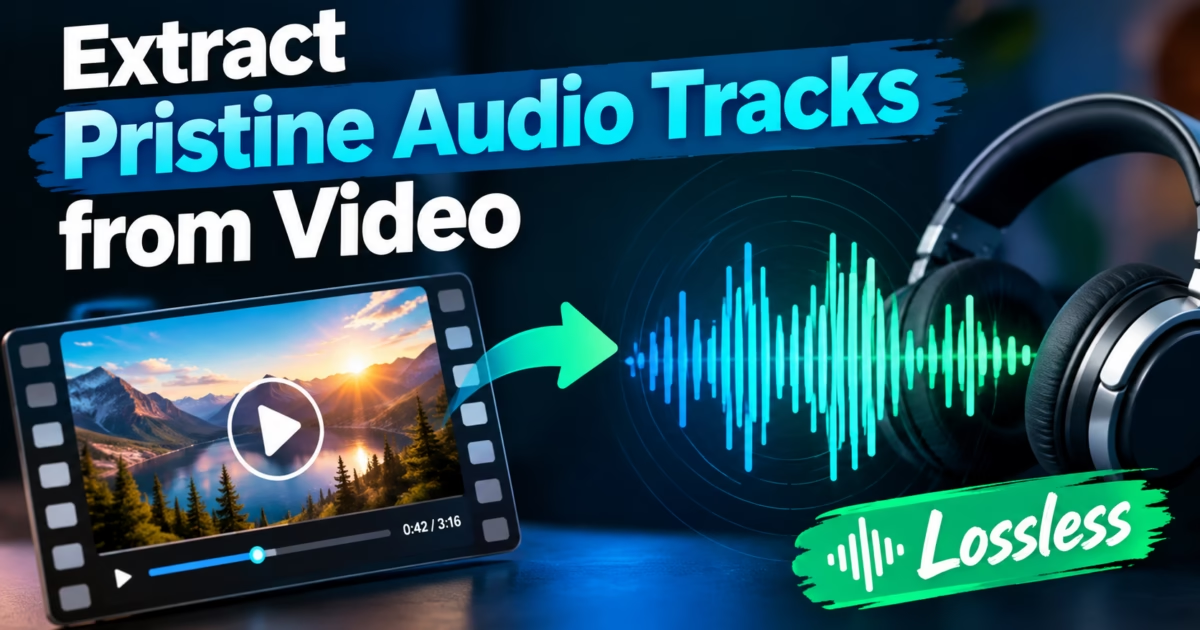
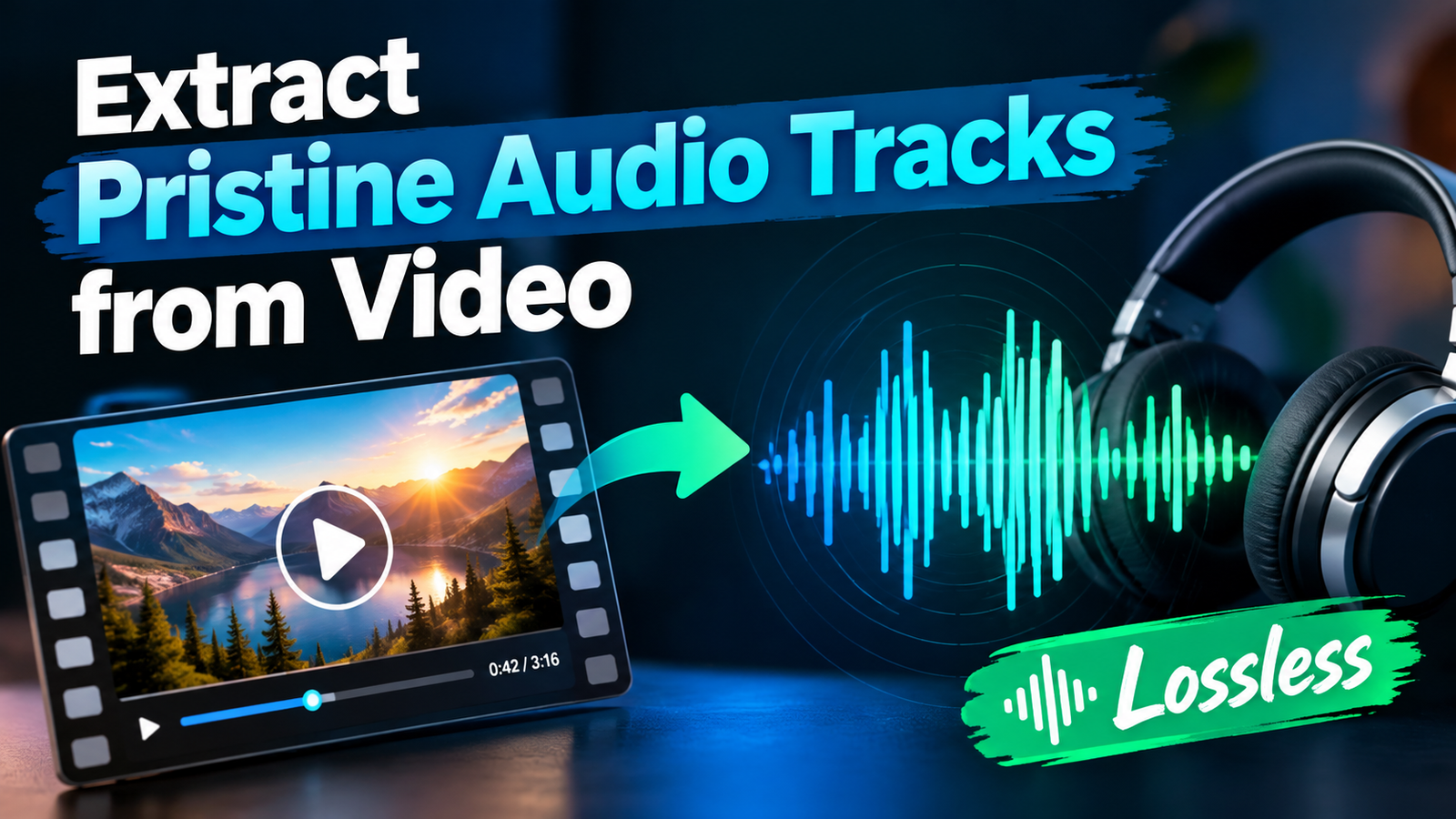
Editorial Technical Solution: When you need to Extract Audio from Video files on Windows 11, lossless bitstream demuxing is paramount. Specifically, this guide explains how to rip soundtracks, voiceovers, and lectures from MP4, MKV, and WebM containers into 320kbps MP3, WAV, or lossless FLAC with zero degradation. In addition, we review how Piludi Audio Converter executes high-speed batch extractions completely offline on your PC.
When you need to Extract Audio from Video files on Windows 11, traditional converter tools often degrade sound fidelity. Content creators, podcast producers, students, and audiophiles routinely need to separate high-quality audio streams from video recordings. You might have recorded an extensive two-hour video interview, captured a live concert stream, or saved an academic webinar. You only need the audio for podcast editing or mobile listening. Unfortunately, generic tools force audio through low-bitrate re-encoders that crush acoustic dynamic range, muffle high frequencies, and strip essential track metadata.
Demuxing vs Transcoding: Why Demuxing Delivers Bit-Perfect Audio
To extract clean sound, you must understand how multimedia containers manage digital audio. Containers like MP4, MKV, and WebM are structured envelopes adhering to the Matroska EBML and ISO Base Media standards. Inside the file, the audio stream already exists as independent, compressed or uncompressed audio packets (such as AAC, AC3, Opus, or PCM).
When you use an inferior converter, it decodes the audio into raw samples and then re-encodes it into an MP3 file using a lossy encoder. This process introduces generational loss: high frequencies above 16 kHz are discarded, transient response is blunted, and phase artifacts appear in stereo imaging. In contrast, Direct Demuxing (Stream Extraction) extracts the audio packets directly from the container headers without altering a single bit. Processing finishes in seconds because the computer simply copies files rather than executing complex math transformations.
Multi-Channel Audio Handling: 5.1 Surround vs Stereo Downmixing
Modern film releases and concert recordings frequently incorporate multi-channel audio configurations, such as 5.1 Dolby Digital, DTS-HD, or 7.1 surround sound. When extracting these tracks for headphone listening or mobile devices, basic converters often handle downmixing poorly.
A common problem is the “inaudible dialogue” phenomenon: center-channel vocal dialogue gets lost when surround sound is crudely flattened into two stereo channels. Piludi Audio Converter features an advanced ITU-R BS.775 compliant downmixing matrix. It applies calibrated gain adjustments (+3dB center boost and -3dB surround attenuation), ensuring that dialogue remains crisp and intelligible across standard stereo headphones while preserving the immersive spatial soundstage.
The Dangers of Free ‘YouTube to MP3’ Web Portals
Many users instinctively search for browser-based video ripper websites. However, online audio extraction services introduce severe operational and security threats:
- Bitrate Spoofing: Shady web portals take a muddy 96kbps audio stream, re-encode it at 320kbps CBR, and falsely claim it is “high-definition studio quality.”
- Aggressive Malware and Notification Hijacks: Browser extraction sites use intrusive ad networks that trigger fake virus warnings and push malicious browser extensions.
- Confidential Data Exposure: Uploading private corporate video recordings or personal voice memos to public web servers creates severe data privacy breaches.
- Severe File Size Limitations: Free cloud services refuse to process 4K video recordings or files exceeding 100MB, rendering them useless for creators.
Windows 10 & 11 Desktop Utility
Extract Studio-Grade Audio Tracks with Piludi Audio Converter
Rip pristine audio from MP4, MKV, WebM, MOV, and AVI videos directly to 320kbps MP3, FLAC, WAV, and AAC right on your PC. Enjoy multi-threaded batch operations, complete local privacy, and flawless ID3 tag preservation.
Step-by-Step Blueprint: How to Extract Audio from Video on Windows 11
Follow this simple step-by-step engineering workflow to extract studio-grade audio tracks from your video library:
Launch Piludi Audio Converter & Import Video Files
Open Piludi – Audio Converter on your Windows workstation. Drag and drop your MP4, MKV, WebM, or MOV video files into the primary conversion workspace. You can import individual clips or entire video directories simultaneously for batch extraction.
Select Output Audio Format & Bitrate Profile
Choose your desired target format: MP3 (320kbps Constant Bitrate) for maximum universal device compatibility, WAV (Uncompressed PCM) for audio editing in Premiere or Audition, or FLAC (Lossless Compression) for pristine archival.
Execute Batch Extraction & Configure ID3 Metadata
Click Start Extraction. Piludi’s multi-threaded engine processes dozens of video files concurrently. In addition, you can input artist names, album titles, and track numbers, which Piludi automatically embeds into the output audio ID3 tags.
Sample Rate Conversion: 48 kHz Video Audio vs 44.1 kHz Music Standards
An often overlooked technical distinction is sample rate alignment. Video production standards (such as SMPTE) standardize audio at 48,000 samples per second (48 kHz). Conversely, traditional CD audio and music streaming platforms utilize 44,100 samples per second (44.1 kHz).
When non-linear video editors or music players perform poorly implemented fractional sample rate conversions, aliasing artifacts and high-frequency distortion occur. Piludi Audio Converter employs polyphase bandlimited sinc interpolation for sample rate adjustments. Whether you preserve the native 48 kHz timeline sample rate or convert down to 44.1 kHz for standard podcast distribution, frequency response remains flat across the entire audible spectrum.
Format Selection Guide: Matching Format to Your Use Case
Selecting the appropriate audio format ensures optimal fidelity and compatibility for your specific workflow:
Frequently Asked Questions on Audio Track Extraction
Can I extract audio from videos that have multiple language tracks?
Yes. Piludi Audio Converter scans the container’s internal audio streams and displays every available track, including secondary director commentary, descriptive audio, and multi-language dubs. You can select individual streams or export all audio tracks simultaneously.
Does extracting audio damage or alter my original video file?
Never. Piludi Audio Converter operates strictly in read-only mode on input video files. The application parses the video data and writes a completely new standalone audio file to your specified output folder, leaving the source video completely untouched.
Can Piludi extract audio from 4K HDR drone and action camera footage?
Yes. Piludi supports all modern video containers, including GoPro, DJI drone, iPhone 4K ProRes, and Sony mirrorless camera recordings. It demuxes high-sample-rate audio streams (such as 48 kHz / 24-bit PCM) with bit-perfect fidelity.
Build High-Fidelity Audio Workflows with DesignoFly
Explore our complete lineup of high-performance Windows software engineered for audio perfection, video conversions, and local data sovereignty.