
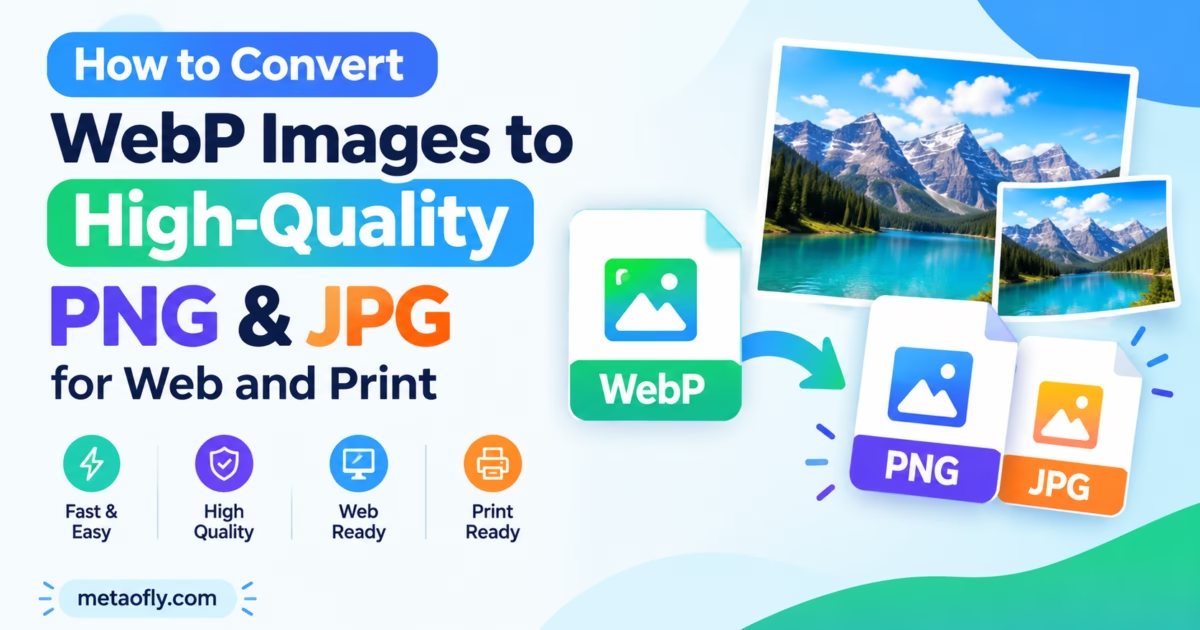
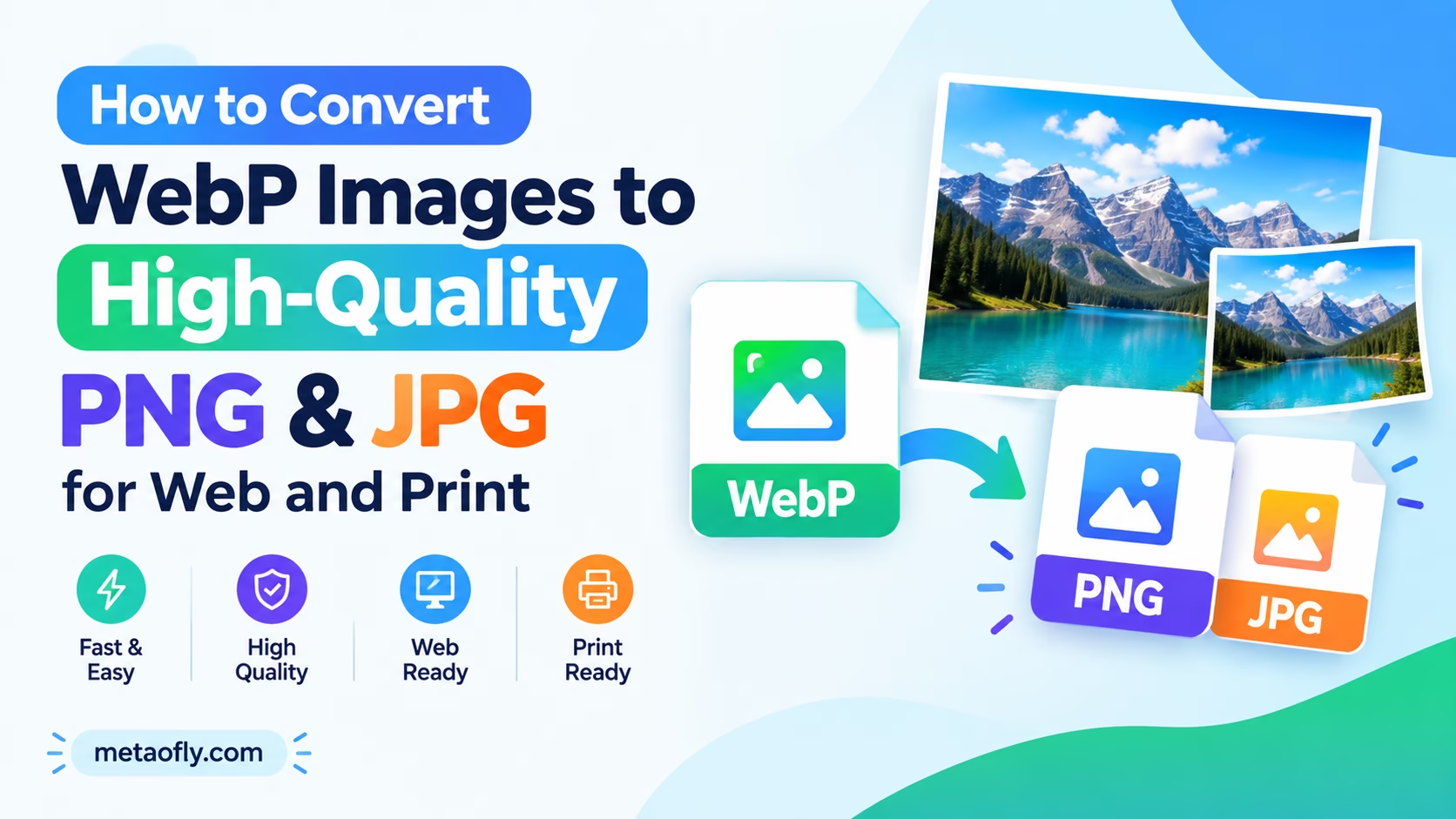
Editorial Technical Solution: Modern web platforms and content delivery networks serve imagery in Google’s compressed WebP format, yet legacy photo editing suites, office suites, and commercial printing presses frequently reject these files. The ability to batch convert webp to png offline provides designers and enterprise marketers with complete format independence. MetaoFly Image Converter and Compressor delivers lightning-fast, client-side transcoding directly inside your web browser, preserving full alpha channel transparency and pristine color fidelity without sending sensitive media to external cloud servers.
Over the past decade, Google’s WebP image format has become the undisputed standard for responsive web performance, reducing network payload sizes by an impressive 25 to 35 percent compared to legacy JPEG and PNG files. While this bandwidth reduction represents a massive win for website speed and search engine rankings, it creates acute operational friction across downstream creative workflows. When art directors, freelance graphic designers, and prepress technicians download WebP graphics from web repositories, they often find their primary desktop production tools unable to parse the container. Learning how to batch convert webp to png offline completely resolves this compatibility bottleneck, enabling instantaneous format translation while maintaining exact visual fidelity and edge transparency.
MetaoFly Image Converter & Compressor
Batch transcode WebP, PNG, JPG, and AVIF files in your browser with zero latency, full alpha channel preservation, and 100% privacy.
The WebP Compatibility Wall: Why Modern Web Images Fail in Legacy Design Software
The widespread adoption of WebP across cloud hosts and content delivery networks has far outpaced legacy desktop software update cycles. Creative teams operating in corporate environments with locked software configurations frequently rely on Adobe Photoshop versions prior to 23.2, which lack native WebP decoding capabilities without manual installation of third-party community plugins. In many regulated enterprise environments, IT security policies strictly prohibit the installation of unverified binary DLL or plug-in files, leaving designers completely unable to open web-sourced visual assets.
Furthermore, vector illustration and desktop publishing mainstays such as Adobe Illustrator, InDesign, and legacy QuarkXPress suites continue to treat WebP as an unrecognized image container. When a marketing team attempts to place a downloaded WebP product shot directly into a corporate brochure or annual report layout, the application throws an unsupported file format alert. Even modern desktop office suites including Microsoft Word, PowerPoint, and Excel can exhibit erratic rendering behavior or generate broken image red-x boxes when presentations containing WebP imagery are shared with colleagues operating on older Windows releases.
Commercial printing environments present an even more rigid barrier. Prepress Raster Image Processors (RIPs) and computerized direct-to-plate printing systems adhere strictly to the ISO 12647 color management standards, requiring high-resolution TIFF, CMYK-ready JPEG, or uncompressed PNG graphics. WebP is virtually absent from prepress hardware specifications. Submitting WebP files to commercial print vendors results in immediate pre-flight rejection or catastrophic rasterization failures on expensive offset printing presses.
Email marketing campaigns encounter similar vulnerabilities. While modern web browsers maintain universal WebP support, the email client ecosystem remains notoriously fragmented. Legacy desktop versions of Microsoft Outlook (utilizing the Microsoft Word rendering engine) and specialized corporate webmail gateways cannot display WebP graphics, presenting recipients with blank empty spaces or broken attachment icons. Converting downloaded web assets into universal PNG or JPG formats is an essential preparatory step for reliable multi-channel marketing deployment.
Lossless vs Lossy WebP: Predictive Encoding, Quantization, and Alpha Channels
Understanding the technical mechanics of WebP compression is crucial when selecting your output parameters during format conversion. Developed by Google from the VP8 video codec, WebP operates in two fundamentally distinct compression architectures: lossy predictive encoding and lossless spatial transformation.
Lossy WebP utilizes predictive block coding similar to modern video frames. The image canvas is partitioned into macroblocks, where pixel values in a target block are predicted from previously decoded neighboring blocks. The encoder calculates the difference (residual error) between the prediction and the actual image, transforms this residual via Discrete Cosine Transform (DCT), and applies perceptual quantization. While this technique yields astonishingly small file sizes, repeated re-encoding into another lossy format like standard JPEG can compound compression artifacts, introducing ringing around sharp typographic boundaries.
Lossless WebP, conversely, employs sophisticated spatial transformations including entropy coding, color space transform, and backward spatial referencing. It guarantees mathematical reconstruction of every source pixel while achieving file sizes roughly 26 percent smaller than optimized PNGs. When you convert lossless WebP files into PNG format, the conversion is 100 percent visually perfect because PNG is also a lossless container.
The handling of alpha channels adds another layer of technical nuance. WebP supports full 8-bit alpha transparency across both lossy and lossless modes. In lossy WebP, the RGB color data can be compressed aggressively while preserving an uncompressed or losslessly compressed alpha mask. When extracting this alpha channel into a PNG graphic, your conversion utility must accurately map transparency values without truncating subtle drop shadows, glass reflections, or semi-translucent feathered edges.
Retaining Full Transparency: Converting WebP Cutouts to PNG Without Gray Fringe Artifacts
One of the most persistent frustrations designers face when using generic online converters is the appearance of ugly dark halos or muddy gray fringe lines surrounding transparent cutout objects. This visual defect renders converted e-commerce product photos, isolated logos, and transparent UI badges completely unusable against light backgrounds.
This defect stems from the mathematical distinction between premultiplied alpha and straight (unassociated) alpha color representation. WebP frequently stores translucent pixels using premultiplied alpha, meaning the red, green, and blue color channels have already been multiplied by the alpha transparency percentage:
Premultiplied RGB:
R_pre = R * (Alpha / 255)
G_pre = G * (Alpha / 255)
B_pre = B * (Alpha / 255)
Standard PNG specifications, on the other hand, strictly utilize straight alpha, storing pure RGB color coordinates alongside an independent transparency byte. When naive conversion tools extract premultiplied WebP data and write it directly into a PNG file without mathematical normalization, the darkened edge pixels are misinterpreted as intentional gray outlines.
MetaoFly Image Converter solves this problem at the algorithmic level. By leveraging the hardware-accelerated HTML5 Canvas Pixel Data pipeline, our conversion engine dynamically detects premultiplied color channels, calculates the exact inverse division, and reconstructs pristine straight alpha RGB coordinates. The resulting PNG file exhibits razor-sharp, natural edges that blend seamlessly across pure white backgrounds, dark mode UI panels, or vibrant brand gradients.
Pro Engineering Tip: Preserving Feathered Alpha Edges
When exporting converted PNG cutouts for e-commerce catalog usage, always verify your edges against both pure black (#000000) and pure white (#ffffff) test backgrounds. MetaoFly’s mathematical straight-alpha normalization prevents dark fringing even along complex hair strands and semi-transparent glass edges.
Print Conversion Best Practices: Exporting Maximum Bitrate JPGs for Packaging and Prepress
While PNG remains the preferred destination format for digital assets and transparent cutouts, commercial print production demands high-density JPEG or uncompressed TIFF files. Converting WebP assets for brochures, packaging boxes, and point-of-sale displays requires adherence to specific prepress guidelines:
- Quality Slider Configuration: Always configure your JPG export quality to 98% or 100%. While web delivery thrives on 80% to 85% compression, commercial offset lithography magnifies 8×8 DCT compression blocks, resulting in noticeable checkerboard banding across smooth sky gradients and skin tones.
- Pixel Dimension Verification: Prepress specifications demand a physical resolution of 300 Dots Per Inch (DPI). Before sending converted files to print, calculate your maximum physical print width by dividing total horizontal pixels by 300. For instance, a 2400×1600 WebP asset converts into an 8×5.3 inch print at full prepress fidelity.
- Eliminating Double Compression: If your source WebP file was originally encoded with heavy lossy compression, converting it to JPEG will not restore missing high-frequency details. However, exporting at maximum quality ensures no additional quantization noise is introduced during the format shift.
- Color Gamut Considerations: WebP files are natively encoded in the sRGB color space. When importing converted JPGs into Adobe InDesign or Illustrator for print output, assign an appropriate CMYK profile (such as GRACoL 2006 or SWOP v2) to ensure predictable ink density on physical presses.
Key Technical Takeaways
- Always convert WebP to PNG when alpha transparency, drop shadows, or cutout edges must be preserved.
- Export to 100% quality JPG when prepping photographic assets for commercial print and offset prepress.
- Client-side browser conversion eliminates gray fringe artifacts by normalizing premultiplied alpha channels.
- MetaoFly processes all files locally in memory with zero cloud uploads, ensuring enterprise privacy.
Why You Should Batch Convert WebP to PNG Offline Rather Than Using Cloud SaaS Converters
When creative professionals search for image conversion utilities, search results are dominated by ad-heavy cloud SaaS portals. These services entice users with basic drag-and-drop interfaces but impose severe operational liabilities that impede enterprise workflows:
The primary danger of cloud-based converters centers on corporate confidentiality and intellectual property security. When you upload unreleased product photography, sensitive marketing campaign mockups, or internal financial presentation slide graphics to a remote cloud server, your data traverses public networks and is stored on third-party file systems. Many free cloud conversion websites include clauses in their terms of service granting them broad licensing rights or retaining uploaded files on unsecured temporary storage buckets. For agencies handling non-disclosure agreements (NDAs) or medical companies governed by HIPAA, uploading client imagery to third-party servers represents an unacceptable compliance violation.
Network latency and artificial file throttles present another major barrier. Cloud conversion platforms enforce strict daily file limits (often restricting free users to 5 or 10 conversions per day), cap maximum file sizes at 5MB or 10MB, and throttle batch queue speeds to coerce users into recurring monthly subscription plans. Processing a batch of 60 high-resolution WebP product photographs on a cloud platform requires uploading over 150MB of data, waiting in a server processing queue, and downloading 150MB of converted files, consuming significant bandwidth and wasting valuable billable hours.
MetaoFly Image Converter and Compressor completely reinvents this paradigm by running 100% of the conversion logic client-side using modern WebAssembly and the HTML5 Canvas API. Your source images are loaded directly into your workstation’s local RAM and decoded using your machine’s multi-core CPU and GPU acceleration. No bytes ever leave your device, meaning your sensitive media remains completely private. Furthermore, because there are zero server processing costs, MetaoFly imposes zero artificial limits: you can batch convert hundreds of high-resolution images in seconds with zero queues, zero watermarks, and zero subscription paywalls.
| Operational Feature | MetaoFly Client-Side Studio | Typical Cloud SaaS Converter |
|---|---|---|
| Data Privacy & Security | 100% Private (Files never leave local RAM) | Transferred to remote servers (Third-party storage) |
| Batch Processing Limits | Unlimited files per batch | Capped at 5-10 files per day on free tiers |
| Maximum File Size | Unlimited (constrained only by device RAM) | Strictly capped at 5MB – 15MB |
| Conversion Latency | Instant (Milliseconds per image via GPU/Canvas) | Slow (Upload queue + remote render + download) |
| Watermarks & Paywalls | Zero watermarks, 100% Free tool | Mandatory watermarks or recurring SaaS fees |
| Network Dependency | Works offline once page is cached | Fails completely without high-speed internet |
Step-by-Step Blueprint: Batch Processing 50+ WebP Files in Seconds Using MetaoFly Image Studio
Converting massive libraries of downloaded WebP graphics into universal PNG or JPG files requires a structured, frictionless workflow. Follow this blueprint to execute high-volume batch conversions using MetaoFly:
Step 1: Launch MetaoFly Image Converter & Compressor
Open MetaoFly Image Converter in any modern desktop browser (Chrome, Edge, Firefox, Brave, or Safari). Because the entire transcoding engine executes within the browser’s JavaScript V8 runtime, there is no software installer, plug-in, or user registration required.
Step 2: Choose Your Target Output Container
Select your desired output format from the primary conversion selector:
- PNG (Portable Network Graphics): Select PNG if your source WebP images contain transparent backgrounds, drop shadows, or sharp technical diagrams where lossless edge clarity is paramount.
- JPG (Joint Photographic Experts Group): Select JPG for continuous-tone photography, website hero backgrounds, and print collateral where maximum compression efficiency and universal compatibility are required.
- AVIF & ICO: MetaoFly also supports exporting to next-generation AVIF for cutting-edge web optimization or multi-size ICO files for website favicons and application icons.
Step 3: Drag and Drop Your WebP File Batch
Open your operating system’s file explorer, select all WebP files you wish to convert (whether 5 files or 100+ files), and drag them directly into the MetaoFly drop target zone. The application immediately reads the file blobs into local memory and displays individual preview cards with original file dimensions, byte sizes, and format metadata.
Step 4: Configure Output Quality and Compression Parameters
For PNG output, select maximum lossless fidelity. For JPG output, configure the quality slider:
- 95% – 100%: Recommended for commercial print production, client presentations, and master archives. Produces visually lossless output indistinguishable from source files.
- 85% – 90%: Ideal for website publishing and e-commerce product grids, striking an optimal balance between visual excellence and bandwidth conservation.
- 70% – 80%: Suitable for draft mockups, internal email attachments, and low-bandwidth mobile applications.
Step 5: Execute Instant Batch Transcoding and Download
Click the “Convert All Images” button. MetaoFly utilizes asynchronous JavaScript Promises and parallel Canvas contexts to transcode multiple images simultaneously. Within seconds, a unified “Download All as ZIP” archive becomes available, alongside individual download buttons for immediate single-file extraction. All converted files maintain their original naming conventions with updated file extensions.
Cross-Tool Synergy: Combining Image Conversion with PDF Suites and Social Resizing
In professional creative environments, image format conversion rarely exists in isolation; it represents the critical gateway step in an integrated digital production pipeline. MetaoFly’s browser-based utility suite is architected to pass converted visual assets seamlessly between specialized production modules:
For document designers compiling multi-page corporate dossiers, converting downloaded WebP product shots into high-resolution JPGs allows direct assembly within the MetaoFly PDF Suite. You can merge converted photographic pages, organize structural page hierarchies, and export print-ready PDF contracts without installing heavy desktop PDF editors or transmitting private documents to cloud portals.
Social media marketing managers frequently encounter WebP assets when sourcing brand imagery for multi-channel distribution. Once your WebP files are converted into high-fidelity PNGs, you can immediately import them into the MetaoFly Social Media Image Resizer. This allows you to crop and scale visuals to exact platform safe zones across Instagram Reels, YouTube banners, LinkedIn carousels, and X headers, preventing critical headline text and product focal points from being cropped out on mobile viewports.
Furthermore, if you are designing physical promotional flyers or packaging cartons that incorporate branded QR codes, you can pair your converted imagery with high-resolution vector assets from MetaoFly Pro QR Code Studio, embedding custom logos and scannable contact information directly alongside your converted product photography.
Troubleshooting Common Conversion Errors: Memory Leaks, Color Shifts, and Dimension Limits
While MetaoFly’s client-side conversion engine delivers exceptional stability, understanding common edge cases ensures a flawless production experience:
- Browser Tab Memory Caps: Modern 64-bit desktop web browsers allocate approximately 2GB to 4GB of RAM per individual browser tab. When batch converting extremely large collections (e.g., 200+ raw 4K images simultaneously), the cumulative canvas pixel buffer can approach tab memory limits. If your browser tab stutters or refreshes, simply process your batch in groups of 40 to 50 files for optimal memory reclamation.
- Animated WebP Conversions: Some WebP files downloaded from social media platforms are animated sequences rather than static images. Converting an animated WebP file via standard static canvas extraction captures only the primary initial keyframe. If you require full multi-frame animation preservation, export individual frame sequences prior to packaging.
- ICC Profile Color Shifts: Occasionally, a converted image may appear slightly desaturated when viewed in legacy photo viewing utilities. This occurs when the source WebP file contains an embedded Display P3 or Adobe RGB wide-gamut profile that is converted into standard sRGB. MetaoFly automatically harmonizes color coordinates to standard sRGB (IEC 61966-2-1 standard) to guarantee uniform rendering across all mobile and desktop monitors.
- Preserving Original Pixel Aspect Ratios: MetaoFly strictly respects the native aspect ratio and coordinate dimensions of your source files. The conversion engine never applies automated stretching, forced letterboxing, or arbitrary resolution downsampling unless explicitly requested via resizing controls.
Ready to Batch Convert Your WebP Library?
Experience instant, 100% private, client-side format conversion. Convert WebP, PNG, JPG, and AVIF files with zero queues, zero watermarks, and zero file size caps directly in your browser.