
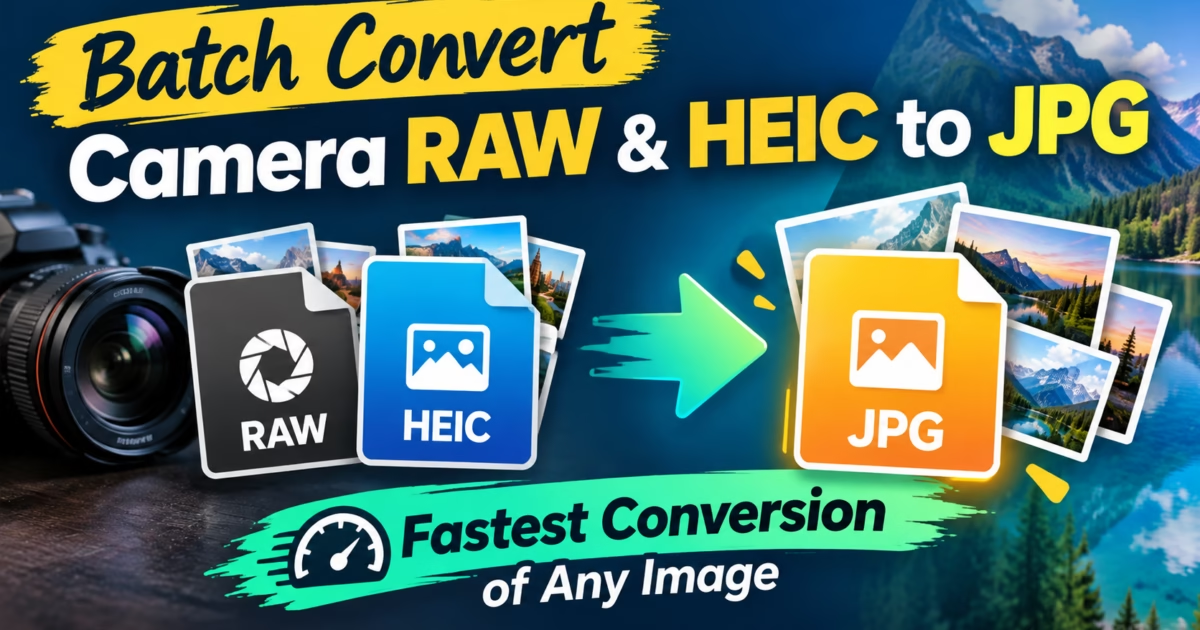
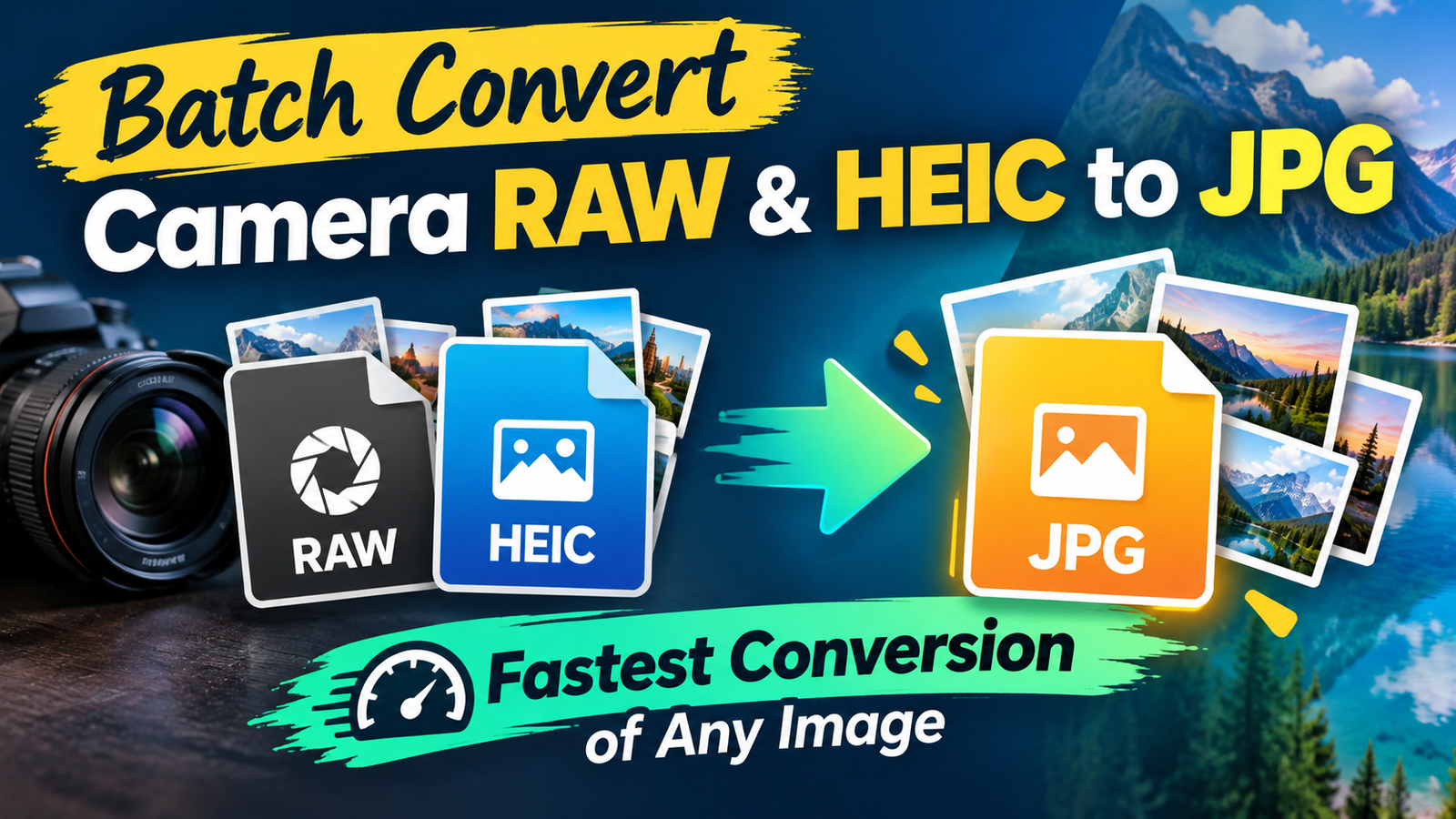
Editorial Technical Solution: When you need to Convert RAW to JPEG in batch on Windows 11, color profile fidelity and high-speed processing are vital. Specifically, this guide explains how to convert uncompressed Canon (.CR2/.CR3), Nikon (.NEF), Sony (.ARW), and Adobe (.DNG) camera captures into lightweight, high-DPI web JPEGs while preserving 100% of embedded EXIF camera metadata. In addition, we review how Piludi Image Converter executes multi-threaded batch conversions locally with zero cloud upload latency.
When you need to Convert RAW to JPEG for client delivery or web publishing, heavy professional files present a massive bottleneck. Professional photographers and digital content creators return from wedding shoots, studio sessions, or commercial product shoots with hundreds of gigabytes of raw sensor data. Each uncompressed RAW image weighs between 45MB and 100MB. Clients and art directors cannot view proprietary Canon CR2, Nikon NEF, or Sony ARW files directly. Furthermore, attempting to open and export hundreds of images one by one through heavy desktop suites like Lightroom or Photoshop can tie up your workstation for hours.
Understanding Camera RAW Sensor Data: Bayer Patterns & Dynamic Range
To convert RAW images properly without producing washed-out tones, you must first understand what a camera RAW file actually represents. A RAW file is not a viewable picture. Instead, it is an un-demosaiced record of voltage readings recorded across millions of photosites on the camera’s CMOS or CCD sensor, usually covered by a Bayer color filter array.
RAW files contain 12-bit to 14-bit tonal depth, capturing up to 16,384 distinct brightness levels per color channel. In contrast, a standard JPEG file adheres to the ISO/IEC 10918-1 JPEG Standard with an 8-bit dynamic range (256 tonal steps per channel). A quality converter must perform high-precision demosaicing and intelligent tone mapping to translate those rich 14-bit highlights and shadow details into an 8-bit JPEG container without clipping the highlights or crushing the shadow tones.
The EXIF Metadata Dilemma: Preserving Shutter, Aperture & Copyright
For professional photographers, an image is more than just pixel values. Every camera RAW capture stores critical Exchangeable Image File Format (EXIF) metadata defined by the CIPA DC-008 Standard:
- Exposure Parameters: Exact shutter speed, lens aperture (f-stop), focal length, and sensor ISO sensitivity.
- Hardware Identification: Camera body serial number, lens manufacturer model, and firmware version.
- Creator Copyright & Licensing: Photographer byline, copyright notice, creation timestamps, and GPS geographical coordinates.
Inferior conversion utilities and web-based tools routinely strip EXIF metadata to minimize file sizes. When you send those converted JPEGs to photo agencies, stock photography libraries, or clients, the copyright protections and technical shooting data vanish completely. Piludi Image Converter explicitly preserves all EXIF, IPTC, and XMP metadata blocks during batch export.
The Cloud Converter Hazard: Why Uploading RAW Files to Free Sites Fails
When non-technical users need to view RAW camera photos, they often search for online photo converters. However, using cloud portals for professional photography introduces massive friction:
- Severe Bandwidth Bottlenecks: Uploading an 800-photo commercial photoshoot (roughly 40GB) over residential web connections takes hours, whereas local desktop processing finishes in minutes.
- Commercial Client Confidentiality Leaks: Unreleased fashion campaigns, private corporate events, or confidential pre-production stills uploaded to cloud servers can leak into third-party databases.
- Color Space Distortion: Web converters often fail to convert wide-gamut Adobe RGB or ProPhoto RGB into the standard sRGB web color space, resulting in dull, desaturated skin tones.
Windows 10 & 11 Desktop Photo Studio
Batch Convert Camera RAW Photos with Piludi Image Converter
Transcode Canon CR2/CR3, Nikon NEF, Sony ARW, Adobe DNG, and iPhone HEIC photos into pristine JPEGs and PNGs right on your local PC. Enjoy multi-threaded batch operations, intact EXIF metadata, and accurate sRGB color management.
Step-by-Step Blueprint: How to Convert RAW to JPEG in Batch on PC
Follow this simple step-by-step engineering workflow to convert hundreds of camera RAW captures into web-ready JPEGs with complete color and metadata accuracy:
Launch Piludi Image Converter & Import RAW Files
Open Piludi – Image Converter on your Windows workstation. Drag and drop your camera RAW files (CR2, CR3, NEF, ARW, DNG) or Apple HEIC photos directly into the queue. You can select entire memory card directories to process hundreds of photos simultaneously.
Configure Target Format, Quality & Color Space
Select JPEG (.jpg) as your target format. Set the export quality slider to 92% to 95% for an optimal balance of file size and visual fidelity. Ensure that Convert to sRGB Color Space and Preserve EXIF Metadata remain checked.
Execute Batch Conversion & Verify Outputs
Click Start Batch Conversion. Piludi’s multi-core demosaicing engine processes multiple images concurrently. Within minutes, your entire shoot is converted into web-ready JPEGs, ready for instant client proofing or social media delivery.
Camera RAW Format Compatibility Matrix
The table below outlines raw format specifications supported natively by Piludi Image Converter on Windows:
Frequently Asked Questions on Batch RAW to JPEG Conversion
Does Windows 11 require paid HEVC or RAW codecs to convert camera photos?
No. Windows Photos frequently displays an error prompting users to purchase a $0.99 HEVC or RAW extension from the Microsoft Store. Piludi Image Converter includes built-in, self-contained open-source demosaicing libraries, enabling complete conversion of camera RAW and iPhone HEIC photos without installing paid system extensions.
Can I resize images during batch conversion to fit web delivery standards?
Yes. Piludi Image Converter allows you to define target long-edge pixel limits (e.g., 2048px for social media previews or 3840px for 4K displays). The engine applies bicubic downsampling to resize hundreds of photos simultaneously during export.
Does converting RAW to JPEG overwrite my original camera files?
Never. Piludi Image Converter treats all incoming RAW camera photos as strictly read-only assets. Converted JPEGs are written as new files into your designated destination directory, ensuring your original sensor masters remain pristine.
Experience Native Desktop Speed with DesignoFly Studio
Discover clean, privacy-first Windows 10 & 11 software crafted for photographers, creators, and power users. No cloud uploads, no recurring subscriptions, and complete desktop autonomy.