

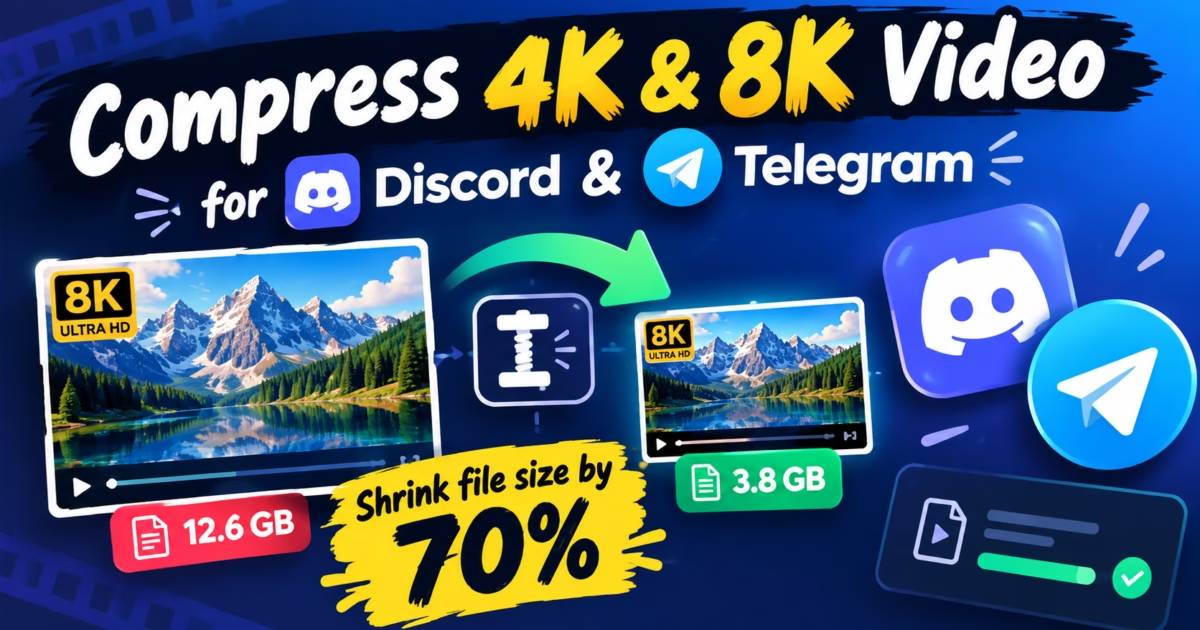
Editorial Technical Solution: When you need to Compress 4K Video Offline on Windows 11, hardware-accelerated HEVC/H.265 encoding is paramount. Specifically, this guide explains how Constant Rate Factor (CRF) rate control and GPU silicon transcode 4GB+ gameplay recordings, drone flights, and action camera clips down to under 50MB for Discord and email with zero visible pixelation. In addition, we review how Piludi Video Converter executes multi-threaded compressions locally on your PC.
When you need to Compress 4K Video Offline on Windows 11, file size limits frequently block communication. Content creators, gamers, drone pilots, and remote collaborators regularly need to share high-definition video clips across platforms like Discord, Slack, and corporate email. You record a brilliant 90-second 4K 60FPS gaming highlight or drone panorama, only to find the raw file weighs a massive 2.5 gigabytes. Discord rejects uploads exceeding 50MB for Nitro users (or 10MB for free accounts), while email gateways block files over 25MB. Online video compressors cap uploads, apply ugly watermarks, and take hours to upload over slow internet connections.
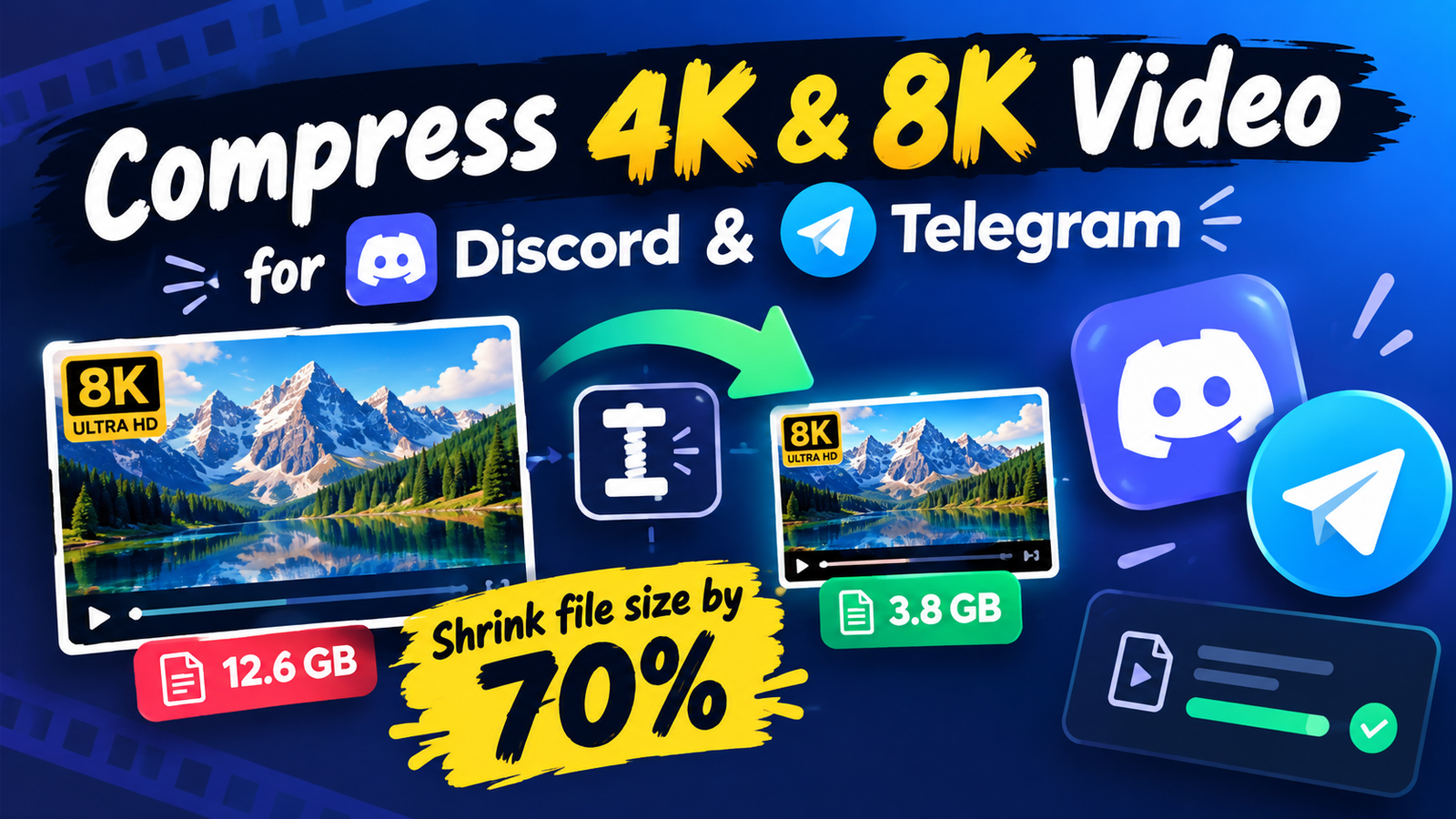
The Video Compression Science: H.264 vs H.265 (HEVC) Architecture
To reduce video weight without introducing blocking artifacts or muddy motion blur, you must understand the mathematical leap between legacy H.264 and modern H.265 (HEVC) standards governed by the ITU-T H.265 Recommendation.
Legacy H.264 video compression divides video frames into rigid 16×16 pixel macroblocks. When processing complex scenes (such as foliage, water ripples, or fast-moving action camera shots), 16×16 macroblocks become overwhelmed, forcing the encoder to either inflate bitrates or drop detail, producing visible pixelation.
In contrast, H.265 (HEVC) utilizes dynamic Coding Tree Units (CTUs) capable of scaling from 64×64 pixels down to 4×4 sub-blocks. Smooth backgrounds (like clear blue skies) are represented by massive 64×64 blocks requiring minimal data, while fine foreground motion receives dense sub-block allocation. Consequently, HEVC delivers identical perceived visual quality at roughly 50% to 75% lower bitrates than H.264, making 4K video sharing over Discord and email practical.
Rate Control Dynamics: Why Constant Rate Factor (CRF) Beats Arbitrary Bitrates
Inferior video compressors force users to guess target bitrates (e.g., typing “5,000 kbps”). This crude approach produces terrible results: simple talking-head scenes waste unnecessary bandwidth, while complex action scenes turn into a blurry mess.
Piludi Video Converter employs intelligent Constant Rate Factor (CRF) Rate Control. In CRF mode, the encoder dynamically adjusts bit allocation frame by frame:
- CRF 18–20 (Visually Lossless): Ideal for professional portfolio submissions and archival. Visually indistinguishable from uncompressed camera masters.
- CRF 22–24 (Balanced Web Standard): The sweet spot for YouTube uploads and Discord clips. Reduces file sizes by 65% to 80% while keeping text and graphics crisp.
- CRF 28+ (Maximum Compression): Optimized for strict email attachment limits (under 25MB) while maintaining clear 1080p resolution.
Audio Stream Optimization: Passthrough vs High-Efficiency AAC
When compressing high-resolution video recordings, users often neglect the audio track weight. High-end camera footage frequently contains multi-channel uncompressed PCM or 5.1 Dolby Digital audio streams that consume 30MB to 50MB of data on their own.
If your goal is to fit a video into Discord’s 50MB ceiling, wasting 30MB on audio leaves only 20MB for the entire video stream, forcing visual quality to collapse. Piludi Video Converter allows you to choose between Audio Passthrough (Direct Copy) for studio mastering and High-Efficiency AAC Stereo Encoding (160kbps / 192kbps). Compacting the audio track frees up massive bit budgets for the HEVC video encoder, ensuring your visuals stay razor-sharp.
Windows 10 & 11 Desktop Video Suite
Shrink 4K Videos in Seconds with Piludi Video Converter
Compress massive 4K MP4, MKV, MOV, and AVI videos down to under 50MB using NVIDIA NVENC, AMD VCE, and Intel QuickSync acceleration right on your PC. Enjoy zero watermarks, multi-threaded batch speed, and complete offline privacy.
Step-by-Step Blueprint: How to Compress 4K Video Offline on Windows 11
Follow this simple step-by-step technical workflow to compress massive video files down to Discord-ready sizes without sacrificing fidelity:
Launch Piludi Video Converter & Import 4K Footage
Open Piludi – Video Converter on your Windows workstation. Drag and drop your heavy 4K 60FPS video files (MP4, MKV, MOV, or TS) into the conversion queue. You can import multiple clips simultaneously for batch processing.
Select Target Preset: Discord (Under 50MB) or HEVC MP4
From the preset menu, choose Web & Discord Optimization (H.265 / HEVC MP4). Enable Hardware GPU Acceleration (NVIDIA NVENC / Intel QuickSync) to offload processing to your graphics card.
Execute GPU Accelerated Compression
Click Start Conversion. Piludi encodes the video in seconds using your graphics card’s dedicated silicon. The application displays exact before-and-after file sizes upon completion.
Real-World Compression Benchmarks: 4K 60FPS Video Shrinkage
The table below outlines real-world compression ratios achieved across high-bitrate action camera and gaming recordings:
Frequently Asked Questions on Video File Compression
Will compressing a video with Piludi add a watermark to my content?
Never. Piludi Video Converter is professional Windows desktop software. It never overlays branding watermarks, stamps, or promotional text onto your video exports. Your content remains 100% clean.
Can I convert MKV, MOV, and AVI videos into MP4 simultaneously?
Yes. Piludi supports universal batch transcoding across dozens of formats. You can drop a mixed folder containing MKV movies, Apple ProRes MOV files, and AVI clips; Piludi standardizes them all into lightweight MP4 files automatically.
Does Piludi require cloud uploads or an active internet connection?
No. Piludi Video Converter executes entirely locally on your Windows PC. It utilizes your local CPU and GPU silicon, ensuring complete confidentiality for proprietary video footage.
Experience Native Desktop Speed with DesignoFly Studio
Explore our complete lineup of lightweight, privacy-focused Windows utilities built for video creators, designers, and power users. Fast local execution, zero bloat, and total computing freedom.