
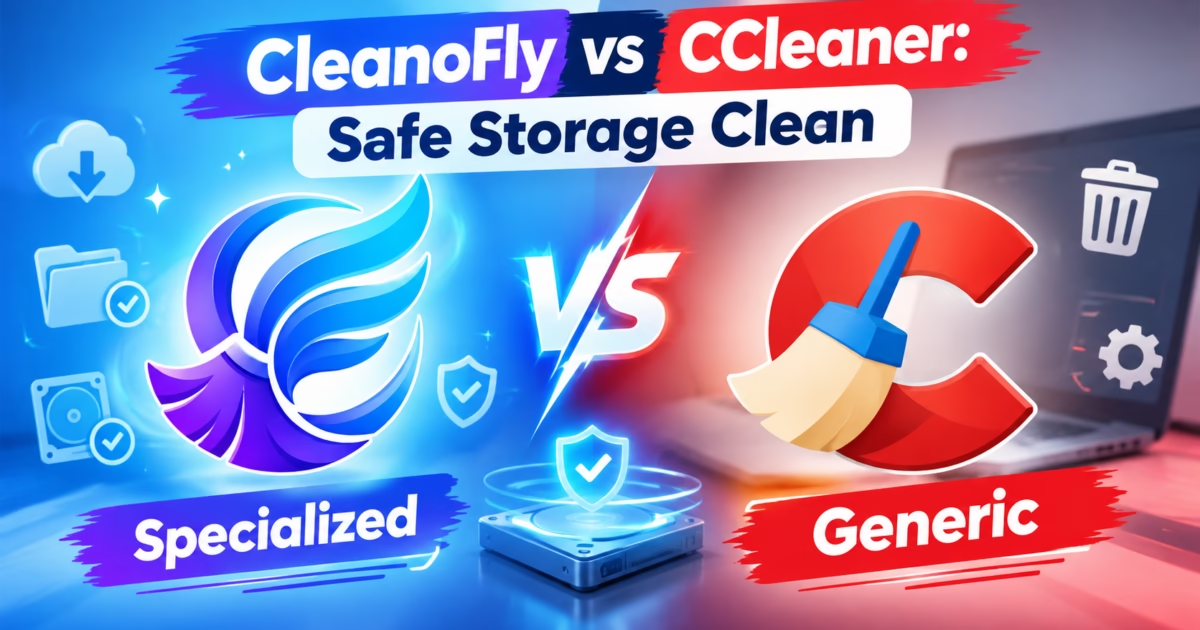
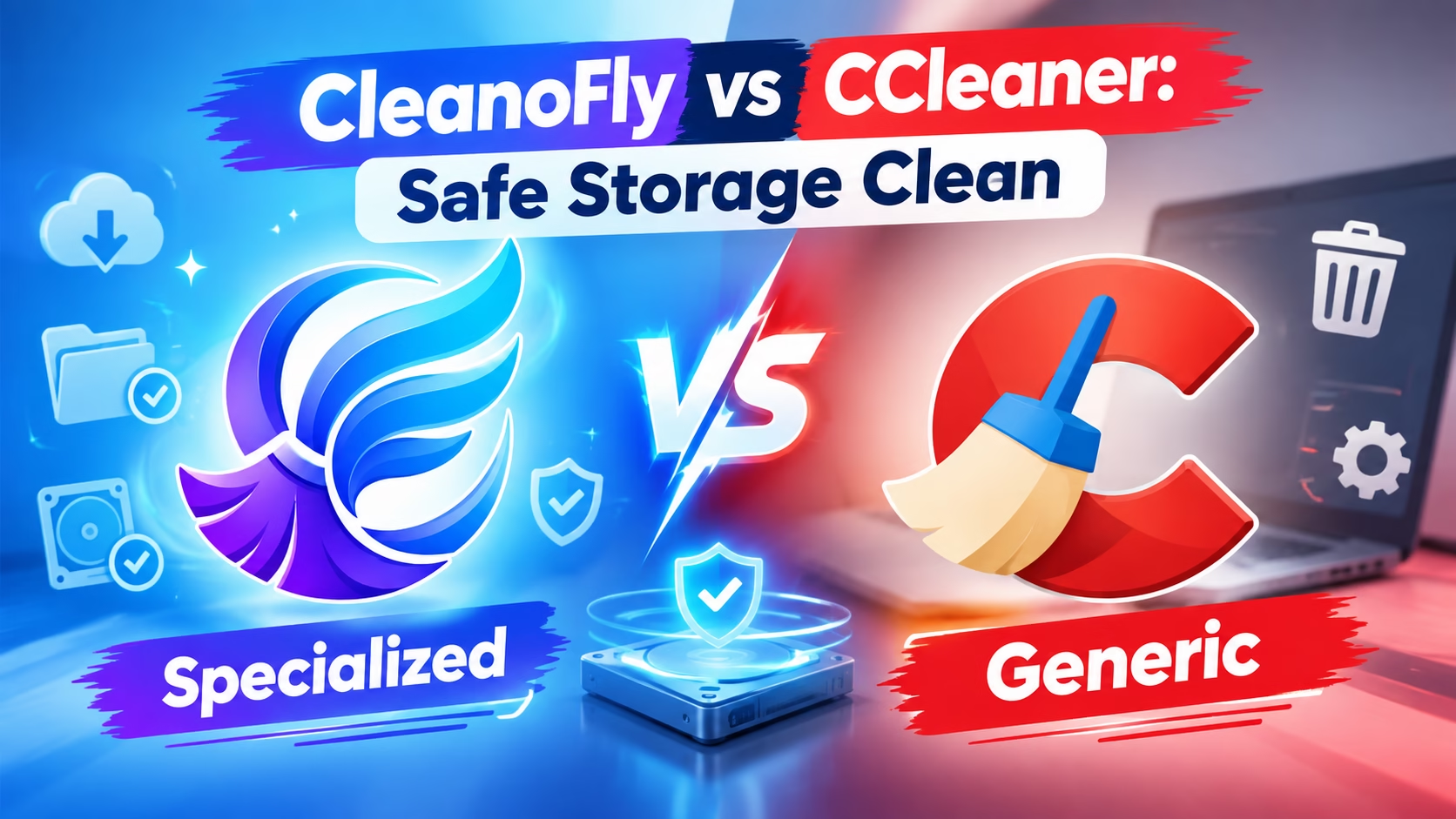
Searching for a genuine CCleaner Alternative Safe disk cleaning utility has become a vital requirement for Windows 11 users who demand maximum drive space without compromising system security. For over fifteen years, CCleaner was the undisputed king of PC maintenance. However, following its acquisition by Piriform/Avast, the utility has suffered high-profile malware distribution breaches, aggressive telemetry tracking, and persistent background monitoring services that consume valuable RAM. In addition, aggressive registry cleaners risk corrupting modern Windows 11 component stores. Consequently, modern PC maintenance demands a native, transparent disk cleaner focused strictly on safe cache and junk removal.
CCleaner Alternative Safe: The Troubled History of Legacy System Cleaners
During the Windows XP and Windows 7 eras, CCleaner earned widespread praise as an essential utility for removing temporary browser files and managing startup programs. However, the software landscape changed dramatically after Avast acquired Piriform in 2017. In that same year, security researchers discovered that hackers had compromised CCleaner’s official release servers, injecting a multi-stage backdoor trojan (CCleaner v5.33) into official binaries distributed to over 2.27 million users worldwide.
Furthermore, subsequent software updates introduced persistent background monitoring daemons that users could not easily disable. The utility began bundling third-party browser toolbars and antivirus trials, prompting Microsoft Windows Defender to temporarily flag CCleaner installers as Potentially Unwanted Applications (PUA). For privacy-conscious PC users, running software with active telemetry daemons and past security vulnerabilities is completely unacceptable.
Therefore, switching to a CCleaner Alternative Safe disk cleaner provides essential peace of mind. A modern system utility should never install hidden background services, never transmit user analytics across the network, and never attempt to modify sensitive operating system registries. Instead, it should execute focused, safe disk cleanup on demand and terminate completely when closed.
The Piriform v5.33 Supply-Chain Breach: When Official Updates Distributed Trojans
The 2017 CCleaner security compromise remains one of the most sobering case studies in modern cybersecurity. Sophisticated threat actors infiltrated Piriform’s internal software build environment, embedding an encrypted secondary payload inside the cryptographically signed `CCleaner.exe` binary. When millions of home and enterprise users updated the software through official distribution channels, the trojan activated.
The malicious payload collected detailed system architecture data, network card MAC addresses, installed software inventories, and computer hostnames, transmitting this telemetry to an external command-and-control server. In stage two of the intrusion, the attackers targeted specific high-profile technology corporations, deploying reconnaissance malware across infected enterprise networks.
This historical catastrophe proved that running traditional unsandboxed system cleaning software with deep administrative privileges creates catastrophic exposure. If a legacy utility possesses full root access to your Windows system, any internal breach immediately compromises your entire machine. Modern system architecture demands sandboxed utilities certified by verified application marketplaces.
The Fallacy of Windows Registry Cleaners in Windows 11
One of the primary selling features advertised by legacy PC cleaners is “Registry Cleaning”. These tools scan the Windows Registry for orphaned file associations, leftover uninstaller keys, and outdated COM object entries, claiming that purging these entries will dramatically accelerate your computer’s gaming and boot performance.
In reality, this marketing claim is completely unfounded in modern computer engineering. The Windows Registry is an indexed binary database spanning tens of thousands of keys. Leftover entries occupying a few kilobytes have virtually zero measurable impact on system memory, CPU processing cycles, or solid-state drive read latency. In fact, Microsoft published an official support advisory explicitly warning against third-party registry cleaners:
“Microsoft does not support the use of registry cleaners… Issues caused by these utilities may not be repairable and your only solution may be to reinstall Windows.” — Microsoft Support Policy for Registry Cleaning Utilities
Aggressive automated registry cleaners frequently misidentify active COM components registered by software development environments, enterprise VPN clients, or digital audio interfaces as “orphans”. Deleting these critical keys causes application crashes, broken context menus, and corrupt Windows Update dependencies. Safe modern PC cleaning focuses strictly on reclaimable disk storage—such as bloated system caches and temporary staging files—while leaving the Windows Registry completely untouched.
Background Telemetry Daemons: Cleaners Consuming 500MB of RAM Just to Monitor
The ultimate irony of legacy PC optimization tools is that the optimizer itself frequently becomes the primary source of system lag. When CCleaner installs on Windows 11, it configures persistent background monitoring daemons known as “Smart Cleaning” and “Health Check Monitoring”. These background processes run indefinitely from system startup to shutdown.
These persistent background daemons continuously monitor file system writes, track browser history changes, and periodically ping external telemetry servers to report anonymous usage statistics. In Task Manager, these helper processes routinely consume between 250MB and 500MB of physical RAM. On budget laptops or high-performance gaming rigs where every megabyte of low-latency memory counts, this background overhead degrades overall performance.
Furthermore, these background daemons display intrusive system tray notifications, warning you that “10MB of junk was found!” and nudging you to upgrade to paid subscription tiers. In sharp contrast, CleanoFly – C Drive Cleaner features zero background tasks. When you close the application, exactly zero processes remain in memory.
Head-to-Head Comparison: CleanoFly vs. CCleaner vs. BleachBit
Where Real Space is Lost: Targeted Deep Cache Cleanup
When your C drive turns red on Windows 11, the culprit is rarely a few megabytes of browser cookies. In modern computing environments, massive disk exhaustion originates from three specific enterprise-grade cache subsystems that generic cleaners frequently ignore:
- Adobe Creative Cloud Media Cache: Video editors running Premiere Pro and After Effects routinely accumulate 40GB to 150GB of uncompressed audio peak files (.cfa) and video preview index files (.pek) within hidden AppData folders.
- Windows Update Delivery Optimization & SoftwareDistribution: Windows 11 archives old update staging packages inside
C:\Windows\SoftwareDistribution\Download. Over months of feature upgrades, orphaned update installers consume 15GB to 30GB of high-speed SSD capacity. - Obsolete Driver Staging Stores (DriverStore FileRepository): Every time your graphics card driver updates (NVIDIA, AMD, or Intel), Windows archives the entire 1GB installer payload into the DriverStore, accumulating massive hidden storage bloat over time.
CleanoFly C Drive Cleaner is architected specifically to identify and purge these multi-gigabyte cache repositories safely. Rather than executing dangerous wildcard deletions, CleanoFly utilizes verified safety heuristics that preserve active project files, system certificates, and essential driver dependencies.
Windows Component Store (WinSxS) Deep Analysis: Hardlinks vs. Orphaned Assemblies
One of the most widely misunderstood directories in Windows 11 is `C:\Windows\WinSxS` (Windows Side-by-Side component store). When users check disk usage with third-party file tree explorers, WinSxS frequently appears to consume 20GB to 30GB of space. Naive PC cleaners attempt to delete files directly from this folder, causing fatal operating system damage that prevents Windows from booting.
In reality, many files in WinSxS are NTFS hardlinks that point to system binaries located in `System32`. Deleting a hardlink does not necessarily free disk space and can sever critical operating system links. However, genuine superseded service pack updates and obsolete payload components can be safely pruned through official Windows servicing APIs.
CleanoFly interfaces with native Windows servicing mechanisms. Instead of performing raw file unlinks, it commands the Windows Component Store manager to analyze superseded differential deltas and flush obsolete servicing backups safely. This eliminates 10GB to 18GB of real storage bloat without breaking system integrity.
The Microsoft Store Sandboxed Advantage: Cryptographic Security & Zero Rootkits
One of the greatest security strengths of CleanoFly is its distribution through the official Microsoft Store. Traditional cleaning software distributed via standalone .exe or .msi installers runs with unrestricted administrative permissions across your entire operating system. If an unsandboxed cleaner contains flawed deletion logic or is compromised by supply-chain attacks, it can modify system files, inject drivers, or install persistent root certificates.
In contrast, CleanoFly operates within a hardened Windows AppContainer sandbox. Every release is cryptographically signed, statically analyzed, and certified directly by Microsoft security engineers. The application cannot execute silent background installations, cannot tamper with core Windows system directories, and cleanly removes 100% of its files if you ever choose to uninstall it.
Furthermore, store sandboxing prevents the bundling of third-party browser extensions, search bar hijackers, and promotional trialware. You receive a pure, focused system maintenance utility engineered exclusively for high-speed local disk optimization.
Preserving Solid-State Drive Health: Targeted Trimming vs. Blind Deletions
Modern computers rely on high-speed NAND flash solid-state drives (NVMe SSDs). Unlike legacy mechanical spinning hard disk drives (HDDs), SSD endurance is governed by finite write cycles, measured in Terabytes Written (TBW). Running aggressive, unoptimized disk cleaners that repeatedly delete and regenerate active application cache files every single day causes unnecessary write amplification, accelerating SSD wear.
CleanoFly employs an intelligent cache aging heuristic. During analysis, the software checks file access timestamps and application lock states. Truly obsolete scratch data—such as orphaned crash dumps from last month or abandoned setup archives—are targeted for safe removal, while active shader caches and working buffers are preserved.
By avoiding mindless daily purging of active browser profile databases, CleanoFly protects your solid-state drive’s lifespan while ensuring that applications load swiftly without having to re-download frequently visited web assets.
Developer & Creator Workstation Tuning: Cleaning Visual Studio, Gradle & Docker Scratch
Software developers and creative digital media artists encounter unique storage challenges that standard cleaning utilities completely ignore. A developer building Android applications, Node.js packages, or Python environments frequently loses 50GB to 100GB of storage within weeks:
- Node Package Manager (npm) & Yarn Caches: Global package repositories accumulate hundreds of redundant tarballs across `AppData\Roaming
pm-cache` and `.yarn\cache`. - Gradle & Maven Build Staging: Java and Android builds store gigabytes of extracted artifact caches inside `.gradle\caches`, often consuming 30GB+ of hidden SSD space.
- Docker Virtual Disk Volumes: Unused dangling containers and abandoned builder image layers create massive virtual hard disk files (`ext4.vhdx`) in WSL2 directories.
CleanoFly includes specialized developer awareness filters that safely identify orphaned development staging repositories without tampering with your active git working trees or local source code files.
Step-by-Step Blueprint: Safely Reclaiming 40GB to 80GB of C Drive Space
- Open CleanoFly C Drive Cleaner: Launch the application from your Windows 11 Start menu. The clean, modern interface displays your primary disk partition utilization in real time.
- Select Target Cache Categories: Review the modular scanning categories, including Windows Update staging caches, temporary application scratch files, browser shader caches, and creative software media caches.
- Perform Deep System Scan: Click the “Analyze” button. CleanoFly swiftly scans hidden cache directories across your drive without modifying or touching your personal documents or Windows Registry.
- Review Reclaimable Space: Examine the detailed storage breakdown, which categorizes discovered junk by exact folder path and megabyte count.
- Execute Safe Cleanup: Click “Clean Now”. Within seconds, orphaned cache files are permanently removed, instantly restoring gigabytes of free storage space to your primary drive.
Frequently Asked Questions on Windows 11 Cleaning and CCleaner Alternatives
Is it safe to clean the Windows 11 Registry with automated tools?
No. Microsoft explicitly advises against third-party registry cleaners. In modern Windows 11 systems, leftover registry keys have virtually zero impact on performance, whereas deleting active COM objects can break system components, software licensing, and Windows Updates. CleanoFly intentionally avoids modifying the registry to ensure 100% safety.
Does CleanoFly run background monitoring tasks or display popups?
No. CleanoFly operates strictly on demand. It installs zero background daemons, has zero startup services, and never consumes memory when closed. It displays zero promotional popups or upsell banners.
How does CleanoFly compare to Windows 11 built-in Storage Sense?
While Windows Storage Sense is a great basic utility for emptying the Recycle Bin and clearing general temp files, it misses massive proprietary caches like Adobe Premiere media scratch files, GPU shader caches, and obsolete Windows Update delivery staging files. CleanoFly targets these multi-gigabyte reservoirs to reclaim up to 10x more storage safely.
Comparing PowerShell DISM Component Cleanup vs. CleanoFly’s Visual Engine
Advanced Windows 11 system administrators often rely on command-line utilities such as Deployment Image Servicing and Management (DISM) to reclaim disk space after major Windows feature upgrades. Executing commands like Dism.exe /online /Cleanup-Image /StartComponentCleanup /ResetBase can indeed purge superseded update versions from the component store.
However, using DISM command-line switches requires running an elevated administrative terminal, memorizing arcane command syntax, and enduring long terminal freezes without visual progress feedback. If an inexperienced user runs the wrong command flags or interrupts the process mid-execution, the servicing stack can enter an inconsistent state, blocking future monthly security updates.
CleanoFly encapsulates safe component servicing within an intuitive graphical interface. Behind the scenes, it communicates with certified Windows servicing interfaces while providing real-time percentage indicators, estimated reclaimable megabytes, and granular category toggles. You achieve enterprise-grade servicing depth without touching cryptic terminal prompts.
Delivery Optimization & BranchCache Bloat: Purging Peer-to-Peer Residue
A major source of mystery disk consumption on Windows 11 is the Windows Delivery Optimization (WUDO) cache. Windows 11 uses Delivery Optimization to download updates, store apps, and game payloads from other PCs on your local network or the internet in a peer-to-peer mesh.
While this peer-to-peer distribution reduces internet bandwidth consumption across corporate local networks, Windows routinely holds these multi-gigabyte update chunks in hidden system folders for weeks. On laptops with modest 256GB or 512GB solid-state drives, orphaned Delivery Optimization chunks frequently hoard 12GB to 25GB of valuable high-speed SSD space.
CleanoFly safely enumerates these peer-to-peer distribution staging stores, verifying that no active Windows Updates are in progress before purging expired payload chunks. This instantly restores gigabytes of primary drive capacity without impacting future system updates.
Conclusion: Modern Windows 11 Optimization Without Compromise
In conclusion, the era of bloated, ad-supported PC cleaners that run persistent background telemetry daemons and tamper with delicate registry databases is over. Modern Windows 11 workstations require streamlined, sandboxed utilities designed specifically for targeted disk cache removal.
By choosing CleanoFly C Drive Cleaner as your primary maintenance utility, you eliminate the security vulnerabilities, memory overhead, and registry corruption risks associated with legacy tools. You gain a clean, fast, and completely safe disk optimization workstation.
Explore our complete portfolio of high-performance desktop tools at the official DesignoFly Studio Software Hub. Download CleanoFly C Drive Cleaner today and keep your Windows 11 PC running at peak performance.
Published by: DesignoFly Studio Team | Windows 11 Systems Architecture, Storage Optimization & Privacy Engineering.