
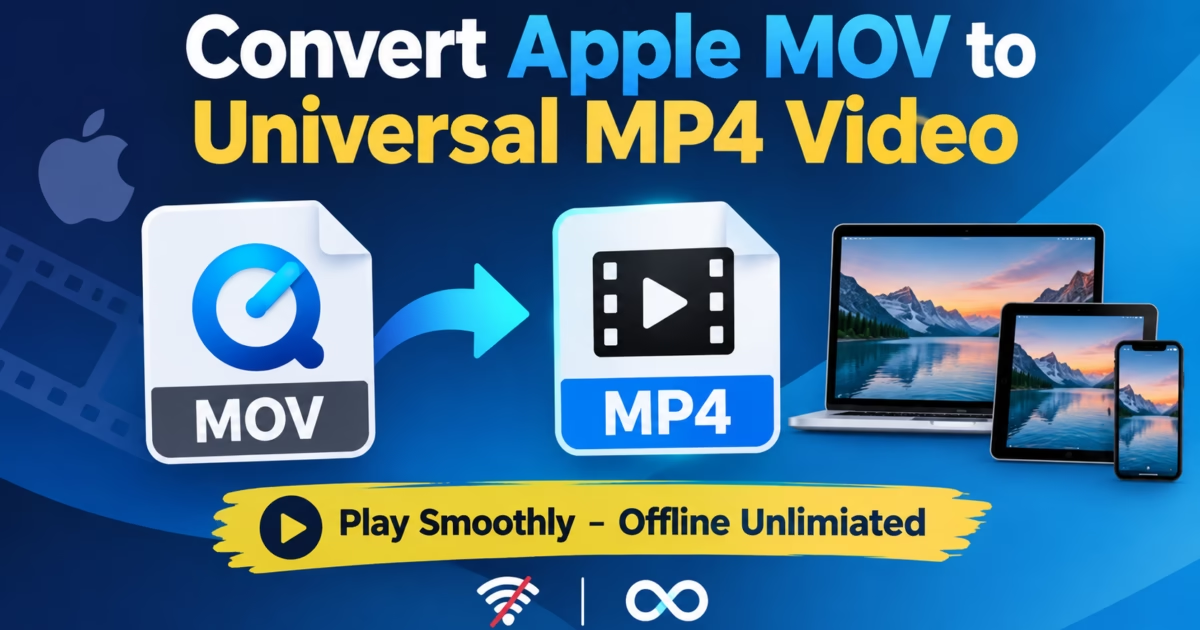
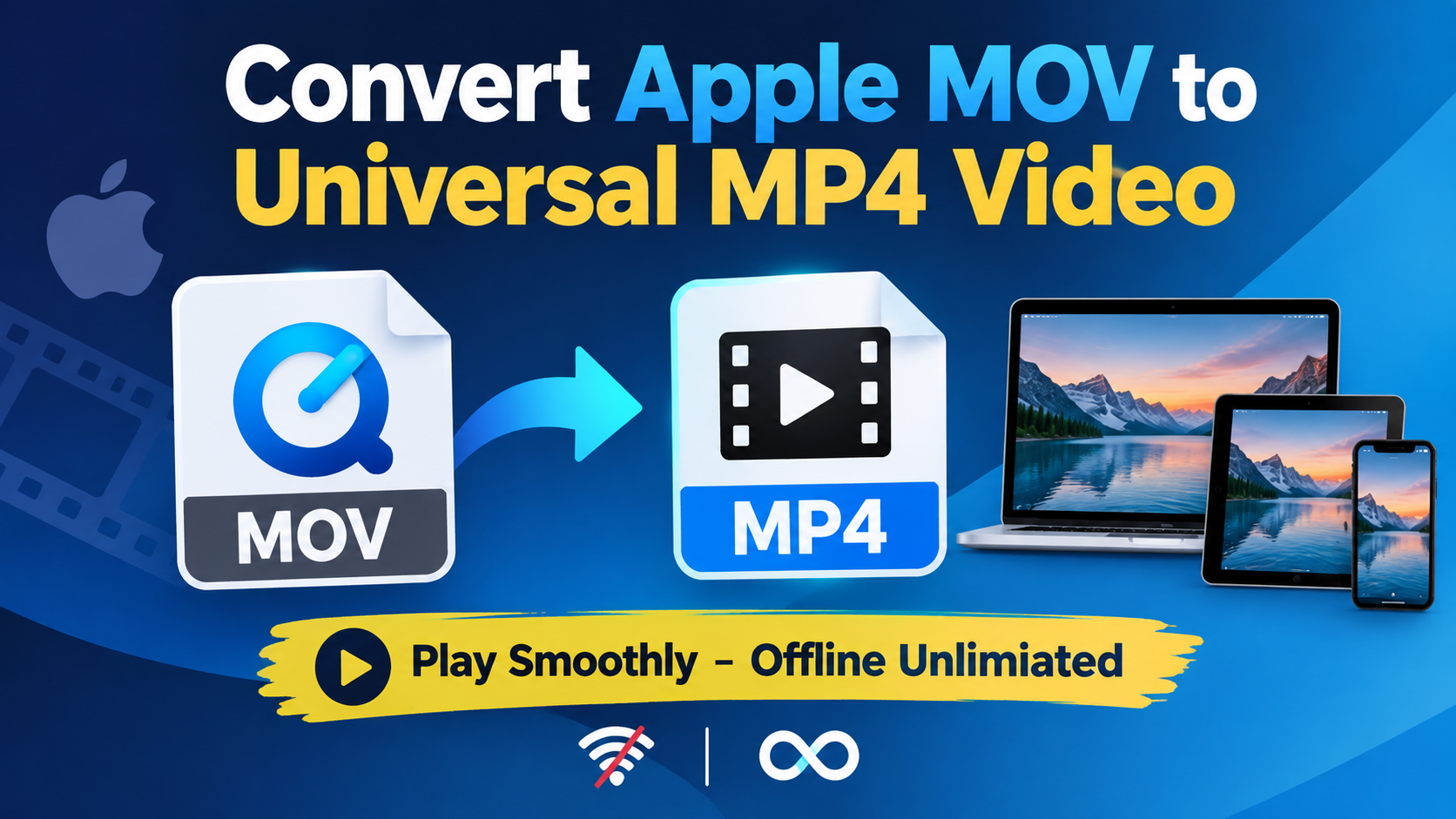
To Convert MOV to MP4 format while strictly transforming mobile Variable Frame Rate (VFR) streams into broadcast-standard Constant Frame Rate (CFR) files is the essential workflow for video editors and Windows 11 users importing Apple iPhone recordings into desktop editing software like Adobe Premiere Pro, DaVinci Resolve, or Sony Vegas. Without proper transcoding, mobile QuickTime clips trigger sluggish timeline scrubbing, stuttering video frames, and drifting audio desynchronization. Standardizing QuickTime container structures ensures buttery-smooth editing performance and universal cross-platform playback across all devices.
Convert MOV to MP4: The iPhone Variable Frame Rate (VFR) Dilemma
Apple iPhones are among the most capable handheld video cameras on the planet, recording stunning 4K footage at 24fps, 30fps, and 60fps with advanced 10-bit Dolby Vision HDR. However, to conserve battery life and prevent internal mobile processor overheating during extended recording sessions, iOS utilizes an aggressive dynamic encoding mechanism known as Variable Frame Rate (VFR).
When you set your iPhone camera to record at 60 frames per second, the device does not capture a rigid 60.000 frames every second. If the camera pans across a static wall or if the thermal sensor detects rising internal heat, the iOS camera encoder dynamically throttles capture speeds down to 57.3 fps, 54.1 fps, or even 42.8 fps. When high-speed motion re-enters the frame, the encoder ramps capture rates back up to 59.94 fps. The resulting QuickTime MOV container records individual frame timestamp markers inside the `time-to-sample` (`stts`) atom rather than maintaining an unbroken, constant time interval.
When you import this file into Windows and choose to Convert MOV to MP4, you eliminate the single greatest friction point in desktop video production. Professional nonlinear editing software (NLEs) are engineered from the ground up for broadcast standards that demand an unyielding Constant Frame Rate (such as exactly 29.97, 30.00, or 60.00 fps). When an NLE attempts to place a VFR file onto a CFR editing timeline, the software calculates audio-to-video alignment linearly. By minute four of a long interview clip, the audio has drifted several seconds out of sync with the speaker’s lips.
Container Architecture: Apple QuickTime MOV vs. Universal MPEG-4 (MP4)
Although both Apple QuickTime MOV and standard MP4 belong to the ISO base media file format (ISO/IEC 14496-12) family and share an atom-based hierarchical architecture, their internal metadata handling differs substantially across desktop operating systems:
- moov Atom Placement (Fast Start Streaming): QuickTime recording software frequently places the `moov` index atom (which contains duration, codec parameters, and track indexes) at the very end of the file. As a result, Windows media players and web browsers cannot start playback until the entire multi-gigabyte video is completely downloaded into memory. Modern MP4 transcoding relocates the `moov` atom to the front of the file, enabling instant playback.
- Codec Incompatibilities & Windows Paywalls: Modern iPhones record video using HEVC (H.265) compression. Because Microsoft does not include HEVC hardware codecs by default in Windows 11 due to patent licensing fees, native Windows Media Player fails to open MOV files without third-party extensions. Transcoding into standard H.264/AVC inside an MP4 container ensures universal playback across every PC, smart TV, and smartphone in existence.
- Color Primaries & Gamma Shifts: Apple QuickTime video frequently embeds proprietary Apple Color Space tags (specifically `nclc` color atoms set to 1-1-1 or 1-2-1). When rendered on Windows PC displays, these tags trigger the notorious “QuickTime Gamma Shift,” causing vibrant footage to look washed out and desaturated. Converting to standardized Rec.709 color matrices restores rich contrast and true-to-life colors.
Advanced Rate Control Mechanics: CRF vs. CQ vs. 2-Pass VBR
When converting video footage, choosing the correct rate control mode is critical for balancing visual quality and output file size. In legacy video converters, users were forced to choose fixed bitrates (CBR), which either wasted gigabytes of disc space on simple static scenes or starved fast-action sequences of data, causing blocky macroblocking artifacts.
Modern encoding engines utilize Constant Rate Factor (CRF) or hardware Constant Quality (CQ) algorithms. Rather than targeting a fixed file size, CRF targets a consistent human visual quality level across every frame. During tranquil conversation scenes, the encoder drops bitrate dramatically. When camera motion bursts across screen, the encoder dynamically injects extra data into complex motion vectors. Setting a CRF value of 18 to 22 in Piludi Video Converter yields visually lossless output identical to the camera master while slashing storage consumption by up to 50%.
Chroma Subsampling & Color Depth: 4:2:0 vs. 4:2:2 vs. 4:4:4
The human eye possesses far greater biological sensitivity to brightness (luminance) than to subtle color nuances (chrominance). Video compression formats exploit this biological trait through chroma subsampling, splitting digital video signals into brightness (Y) and two color-difference channels (Cb and Cr).
Standard consumer video is encoded using 4:2:0 subsampling, which reduces color resolution by half both horizontally and vertically. While ideal for web streaming, green-screen chroma keying and VFX compositing benefit immensely from 4:2:2 or 4:4:4 color fidelity. In addition, 10-bit color depth provides 1,024 shades per color channel (over one billion colors), compared to just 256 shades in legacy 8-bit video. Piludi Video Converter allows creators to preserve 10-bit color pipelines, completely eradicating banding across smooth sky gradients and dimly lit scenes.
Performance Benchmark: Fast Hardware Transcoding vs. Slow Web Tools
GPU Hardware Acceleration: NVENC, AMD AMF & Intel QuickSync
Transcoding high-bitrate 4K 60FPS video using standard software CPU encoders (such as x264 or x265) demands immense processor throughput. On a mid-tier desktop computer, software encoding a 10-minute 4K iPhone clip can peg all CPU cores at 100% for over 45 minutes, producing massive fan noise and slowing down other applications.
In contrast, modern graphics cards feature dedicated hardware silicon blocks engineered specifically for real-time video encoding and decoding:
- NVIDIA NVENC (8th Generation): Found on GeForce RTX 30-series, 40-series, and newer GPUs. Delivers ultra-crisp H.264 and HEVC encoding with advanced B-frame spatial motion estimation, transcoding 4K video at 150+ frames per second with near-zero CPU utilization.
- Intel QuickSync Video (QSV): Integrated directly into Intel Core desktop processors. QuickSync provides exceptional energy efficiency and hardware-accelerated 10-bit 4:2:0 HEVC decoding.
- AMD Advanced Media Framework (AMF): Powers hardware acceleration across Radeon RX graphics architectures, offering dedicated video coding engines (VCN) that offload heavy video pipelines from system memory.
Piludi Video Converter automatically detects your system’s installed graphics hardware, initializing dedicated GPU hardware encoders to transcode multi-gigabyte iPhone files in minutes rather than hours.
Preserving Color Profiles: Rec.709 vs. HDR Dolby Vision Output Presets
A critical consideration when transcoding iPhone footage is color management. Modern iPhone 12 through iPhone 16 models record in 10-bit Dolby Vision HDR using the H.265 codec and the wide BT.2020 color colorimetry curve. When this footage is converted into standard 8-bit MP4 using naive, un-calibrated tools, the highlights blow out to harsh white and skin tones appear sickly orange.
To preserve visual beauty, sophisticated video conversion engines apply high-precision 3D LUT (Look-Up Table) tone mapping algorithms. This process mathematically maps the high-dynamic range luminance data (up to 1,000 nits) into standard dynamic range (SDR) Rec.709 color spaces without clipping shadow details or blowing out delicate clouds.
Alternatively, if you possess a high-end HDR monitor or plan to upload your finished video to YouTube’s HDR channel, Piludi Video Converter allows you to export 10-bit H.265 MP4 files with embedded HDR10 static metadata (`master-display` and `max-cll` parameters). This preserves authentic high-dynamic range brilliance for compatible displays.
Understanding GOP Structure: I-Frames, P-Frames & B-Frames
Temporal video compression achieves high efficiency by dividing continuous video frames into a Group of Pictures (GOP). Rather than storing 60 individual photograph-quality frames every second, the encoder stores three distinct frame types:
- Intra-Coded Frames (I-Frames / Keyframes): Complete self-contained image frames compressed like standalone JPEGs. An I-frame requires no information from other frames to render and serves as the definitive reference anchor for video seeking and timeline scrubbing.
- Predicted Frames (P-Frames): Contain forward motion vectors describing only the pixel changes that occurred since the preceding I-frame or P-frame. P-frames require significantly fewer bits than I-frames.
- Bi-Directional Predictive Frames (B-Frames): Highly compressed frames that interpolate visual data using both past and future reference frames, offering maximum compression efficiency.
Mobile smartphones often employ extended or variable GOP lengths (sometimes stretching several seconds between keyframes) to reduce battery draw and write loads. When editing such clips in Adobe Premiere or DaVinci Resolve, the timeline engine must constantly decode massive GOP chains backward and forward, resulting in severe scrubbing lag. Piludi Video Converter allows creators to configure fixed GOP intervals (e.g., standard 1-second or 2-second keyframe cadences), ensuring lightning-fast responsive scrubbing in professional editing software.
Audio Resampling & Peak Normalization: EBU R128 Loudness Standards
Audio quality is just as crucial as video resolution. Smartphone microphones frequently record audio across non-standard sampling rates or with wide dynamic ranges where whispering speech is inaudible while sudden background clatter clips the digital ceiling into harsh distortion.
Piludi Video Converter incorporates high-fidelity audio resampling algorithms that standardize all incoming streams to professional 48.0 kHz 24-bit PCM or pristine 320 kbps AAC-LC. Additionally, users can activate integrated loudness normalization adhering to international broadcast standards (such as ITU-R BS.1770-4 and EBU R128). This automatically levels vocal dialog to consistent -14 LUFS target levels—the exact specification required by YouTube, Spotify, and modern streaming platforms—eliminating awkward volume jumps between clips.
Batch Automation & Watch Folders for Video Production Teams
For content creators producing daily YouTube vlogs, social media reels, or commercial client deliverables, manually converting individual video clips is an inefficient bottleneck. Piludi Video Converter features automated background batch processing and custom watch folder integration.
By designating a specific Windows directory as an active Watch Folder, any new `.mov` or raw video files transferred from an iPhone or SD card reader are automatically ingested, transcoded according to predefined preset profiles (such as 4K CFR ProRes or lightweight 1080p MP4 web proxies), and routed directly into your video editing project bin. This allows production teams to automate ingest pipelines seamlessly without touching manual converter controls.
ProRes 422 Proxy Generation for Ultra-Smooth Laptop Video Editing
When video editors work remotely on portable Windows laptops or ultrabooks, scrubbing through multiple streams of dense 4K 60FPS HEVC iPhone footage can quickly overwhelm integrated graphics processors and drain system batteries. H.265 compression is designed for high storage efficiency rather than swift timeline seeking.
To solve this limitation, Piludi Video Converter provides automated ProRes 422 Proxy batch creation. During the initial import phase, the software generates lightweight intra-frame editing proxies at 1080p or 720p resolution. Because intra-frame codecs compress each video frame independently without inter-frame GOP dependencies, editing software can scrub forward and backward through four simultaneous camera angles without dropping a single frame. Once timeline cuts and color grading are complete, editors can relink the master high-resolution MP4 clips for final export.
Color Space Transforms: Converting Apple Log to Rec.709 with 3D LUTs
With the introduction of Apple Log recording on iPhone 15 Pro and iPhone 16 Pro models, mobile videographers can capture extraordinary dynamic range suitable for commercial cinematic production. However, raw Log footage appears extremely flat, desaturated, and milky when viewed in standard media players or un-graded timelines.
Piludi Video Converter integrates professional color management pipelines powered by open color standards. Users can apply certified Apple Log to Rec.709 3D LUT conversions directly during the batch transcoding process. This bakes accurate natural contrast, rich skin tones, and balanced saturation directly into universal MP4 deliverables, allowing clients and team members to review footage immediately without requiring specialized color grading software.
Step-by-Step Blueprint: Converting iPhone MOV to CFR MP4 in Piludi
Follow this simple step-by-step workflow to prepare your iPhone video clips for seamless desktop editing and smooth playback:
Step 1: Launch Piludi Video Converter & Import MOV Clips
Open Piludi Video Converter on Windows 11. Drag and drop individual QuickTime `.mov` files or an entire folder of mobile video clips directly into the queue.
Step 2: Select Universal MP4 Format with CFR Enforcement
Choose MP4 (H.264 / AVC) or MP4 (H.265 / HEVC) from the profile dropdown. Under Frame Rate Settings, select Constant Frame Rate (CFR) and select your target timeline speed (e.g., 60 FPS or 29.97 FPS).
Step 3: Enable Dedicated GPU Hardware Acceleration
Ensure Hardware Acceleration (NVENC / AMF / QSV) is activated. This harnesses your discrete graphics card’s dedicated silicon media engines to encode 4K video at speeds exceeding 150 frames per second.
Step 4: Execute Batch Transcoding & Verify Audio Sync
Click Convert All Files. Once complete, import the output MP4 files into Premiere Pro or Windows Media Player to enjoy stutter-free timeline playback and flawless lip-sync alignment.
Frequently Asked Questions on Apple MOV to MP4 Conversion
Why does converting from VFR to CFR fix audio drift in Adobe Premiere?
Adobe Premiere Pro schedules video rendering against an unyielding timebase clock. When an incoming video stream drops frames dynamically, Premiere still attempts to pace audio continuously. Standardizing the file to CFR inserts mathematically synthesized duplicate frames at precise timestamps, keeping audio and video channels locked in perfect sync throughout hour-long timelines.
Can I convert MOV to MP4 without re-encoding the video stream?
Yes! If your source MOV file was already recorded at a constant frame rate and simply needs container repackaging, Piludi offers a Lossless Stream Copy (Remux) mode. This operation extracts raw H.264/HEVC packets from the MOV container and wraps them into an MP4 container in less than 3 seconds with zero generation loss.
What is the best audio codec for universal MP4 playback?
Advanced Audio Coding (AAC-LC) at 192kbps to 320kbps stereo is the undisputed industry standard for MP4 containers. AAC provides pristine acoustic transparency across every web browser, television, and mobile device manufactured in the last two decades.
Does converting MOV to MP4 remove Apple spatial audio tracks?
Piludi Video Converter offers multi-channel pass-through for 5.1 and 7.1 surround sound audio tracks. When converting mobile recordings, users can choose between down-mixing spatial audio into universal stereo or preserving discrete surround audio channels within the output MP4 container.
Official Software Hub Access & Windows Desktop Installation
Never let choppy mobile video lag slow down your creative workflow or ruin client presentations. Discover high-performance desktop media utilities on the DesignoFly Studio Software Hub, and download Piludi Video Converter today for permanent unrestricted access to fast GPU-accelerated video conversion on Windows 11.
Published by: DesignoFly Studio Team • Verified on Windows 11 • Technical Reference: Apple QuickTime File Format Specification