
Editorial Technical Solution: When you need to Convert HEIC to JPG from Apple iPhone photo libraries on Windows 11, bypassing Microsoft Store paid codec paywalls is essential. Specifically, this guide reveals how native libheif decoding converts High Efficiency Image Container photos into universal, full-resolution JPEG and PNG images with complete EXIF camera metadata retention. In addition, we review how Piludi Image Converter executes multi-threaded batch conversions 100% offline on your PC.
When you need to Convert HEIC to JPG after transferring photos from an iPhone to your Windows PC, Microsoft’s operating system greets you with an irritating paywall. You connect your smartphone or download a shared vacation album via iCloud, only to discover that Windows Photos refuses to open `.heic` images. Instead, a prompt directs you to the Microsoft Store to purchase the “HEVC Video Extensions” codec for $0.99. Adobe Photoshop, web browsers, and desktop publishing software also refuse to import raw HEIC files. Desperate users frequently turn to free online converters, uploading personal family vacations, confidential receipts, and sensitive identification documents to insecure cloud servers.

The Format Architecture: Understanding Apple’s HEIC / HEIF Container
To convert iPhone images without color degradation or loss of camera details, you must understand the High Efficiency Image Container architecture governed by the ISO/IEC 23008-12 (HEIF) Standard.
Apple adopted HEIC (High Efficiency Image Container) starting with iOS 11. HEIC compresses individual still photos using the advanced High Efficiency Video Coding (HEVC/H.265) intra-frame compression algorithm. Compared to legacy 1992 JPEG standards, HEIC achieves identical or superior image quality at roughly 50% smaller file sizes, while supporting 10-bit and 12-bit color depths and multiple items (such as Live Photo video clips and depth maps) inside a single container.
Furthermore, modern iPhones record images using the wide Display P3 color gamut, which encompasses roughly 25% more vibrant reds and greens than legacy sRGB. When converting HEIC images to standard JPEG formats, crude web tools clip out-of-gamut color coordinates, causing noticeable color shifts or dull foliage tones. Piludi Image Converter performs ICC profile matrix transformations, embedding standard sRGB or preserving original Display P3 color profiles so that your photographs appear as vivid on desktop PC monitors as they did on your iPhone OLED display.
iPhone Live Photos & Burst Shots: Extracting Full-Resolution Stills
Modern iPhones frequently capture photographs with “Live Photos” engaged. Under this mode, each captured image is actually a multi-item package: a primary 12MP or 48MP still frame paired with a brief 3-second Apple QuickTime MOV video clip.
When users copy Live Photos to Windows, the operating system splits them into two disjointed files: a non-opening `.heic` still image and a separate `.mov` video file. Basic web converters often fail completely on multi-item HEIF packages or downscale the primary still image to low-resolution video preview frames (1080p). Piludi Image Converter includes an intelligent container inspector that isolates the uncompressed primary photographic sensor capture at maximum native resolution, preserving full dynamic range and optical sharpness during JPEG conversion.
The Privacy Hazard: Why Uploading Private Photos Online Is Dangerous
When users hit the Windows HEIC roadblock, they often turn to online image conversion websites. What they fail to realize is that smartphone photos contain intimate private metadata:
- Embedded GPS Coordinates: iPhone photos embed exact latitude and longitude coordinates showing where photos were captured (your home address, children’s schools, or private workplaces).
- Permanent Cloud Data Scraping: Online converters routinely store uploaded pictures on third-party cloud servers to train commercial AI computer vision models.
- EXIF Metadata Stripping: Crude web tools strip camera lens info, exposure settings, and original capture dates, ruining photo library sorting.
Windows 10 & 11 Desktop Image Studio
Convert 1,000+ iPhone HEIC Photos to JPG in Seconds
Bypass Microsoft Store paid codec fees completely. Batch convert entire iPhone photo collections to universal JPG and PNG formats with 100% EXIF retention, multi-core CPU speed, and absolute offline privacy with Piludi Image Converter.
Step-by-Step Blueprint: How to Convert HEIC to JPG on Windows 11
Follow this simple step-by-step technical workflow to transcode your iPhone photo library into universal JPGs without paying for codecs:
Launch Piludi Image Converter & Import HEIC Photos
Open Piludi – Image Converter on your Windows workstation. Connect your iPhone or open your downloaded photo folder. Drag and drop hundreds of `.heic` pictures directly into the application queue.
Select Target Format: JPG (95% High Quality) & Preserve EXIF
Choose JPG (JPEG) as your output format and set the quality slider to 95% (indistinguishable from original camera captures). Verify that the Preserve EXIF Metadata checkbox is active to retain GPS geotags, camera lens data, and capture timestamps.
Execute Batch Conversion with Multi-Threaded Speed
Click Convert All Images. Piludi distributes the images across all CPU threads, transcoding hundreds of high-resolution photos in seconds. The newly generated JPGs open immediately in any photo viewer, Photoshop, or web browser.
Apple HEIC vs Converted JPEG Profile Comparison
The table below compares technical image metrics between Apple’s native HEIC container and Piludi’s converted JPEG exports:
Frequently Asked Questions on HEIC to JPG Image Conversion
Will converting HEIC to JPG decrease the visual quality of my photos?
When converting using Piludi Image Converter at 95% quality, the visual output is mathematically near-identical to the original photo. Dynamic 4:4:4 chroma sampling ensures crisp edges, vibrant color transitions, and zero compression macroblocking.
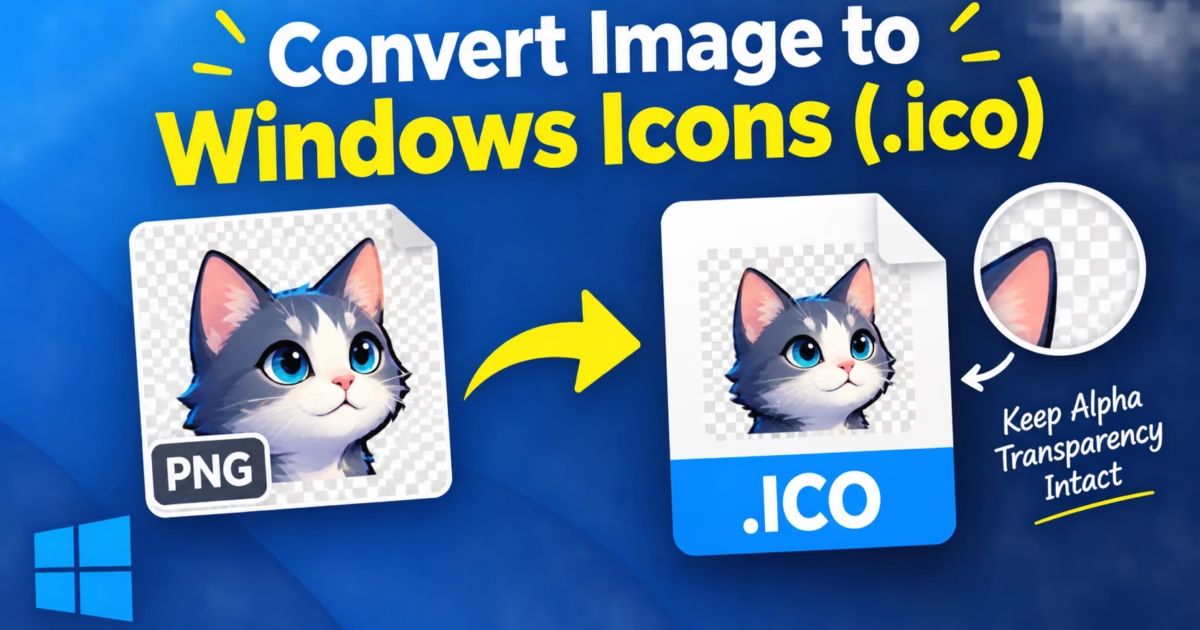
Can I convert PNG images to multi-resolution Windows icons (.ico)?
Yes. Piludi Image Converter includes a specialized ICO generation engine. It packages PNG graphics with full alpha transparency into multi-resolution Windows `.ico` files containing 16×16, 32×32, 48×48, 64×64, 128×128, and 256×256 pixel layers for application development and desktop customization.
Does Piludi require installation of Microsoft HEVC Video Extensions?
No. Piludi Image Converter incorporates self-contained open-source image decoding libraries. You never need to purchase or install anything from the Microsoft Store to view and convert HEIC photos.
Experience Native Desktop Speed with DesignoFly Studio
Discover clean, privacy-focused desktop utilities built for photographers, designers, and PC enthusiasts. High performance, zero bloat, and total computing freedom.