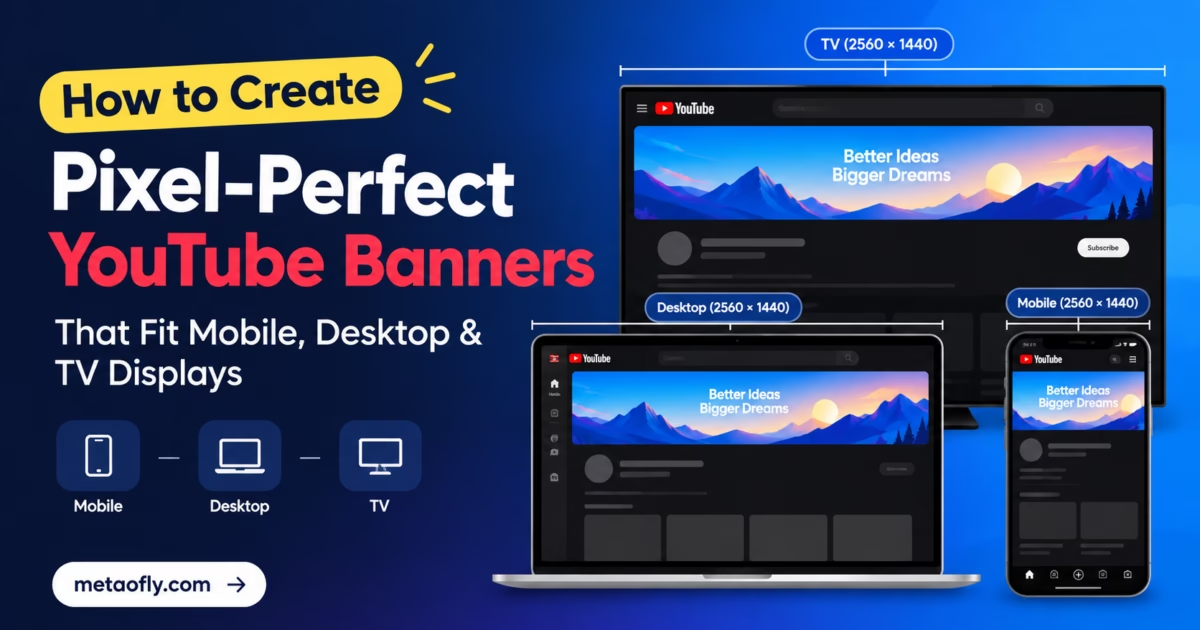
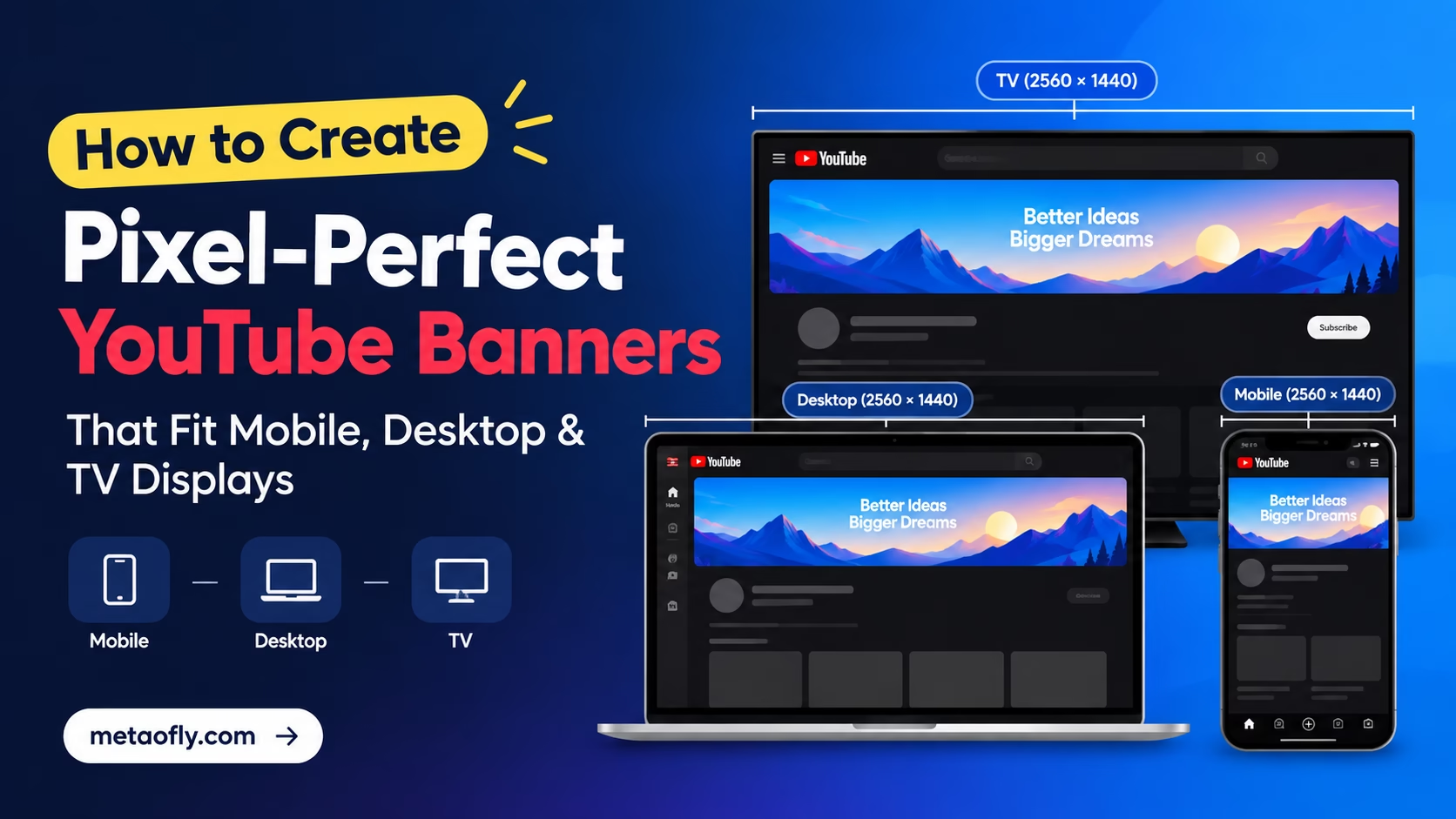
Editorial Technical Solution: Designing a professional YouTube channel banner is notoriously tricky because a single uploaded canvas must dynamically adapt across 75-inch smart TVs, widescreen desktop monitors, tablets, and 5-inch mobile phones. The technical secret to make youtube banner fit mobile and desktop lies in mastering the central 1546×423 pixel safe zone while extending background art across the full 2560×1440 container. MetaoFly Social Media Image Resizer provides interactive safe zone overlays that eliminate guesswork and prevent severed channel branding.
Your YouTube channel banner—officially designated as channel header art—is the digital storefront of your video production brand. When a curious viewer clicks onto your channel page after watching a viral video, your header art has under three seconds to communicate your content value proposition, upload schedule, and brand identity. Yet, millions of YouTube creators suffer from botched banners where channel names are sliced in half on mobile phones, social media links collide with subscriber buttons, or artwork appears awkwardly letterboxed. Learning how to make youtube banner fit mobile and desktop gives you the precise dimensional discipline required to build flawless, responsive channel art that commands respect across every screen.
MetaoFly Social Media Image Resizer
Design, crop, and verify YouTube channel banners with exact 1546×423 safe zone overlays. 100% free with zero downloads.
The 2560×1440 YouTube Canvas Anatomy: Understanding TV, Desktop, Tablet, and Mobile Cutoffs
To understand why YouTube banners are so difficult to format, you must examine how Google’s YouTube engineering team handles multi-device responsive delivery. Rather than allowing creators to upload separate banner files for desktop, mobile, and television devices, YouTube mandates a single master canvas measuring exactly 2560 pixels wide by 1440 pixels high (a standard 16:9 widescreen aspect ratio).
When this master 2560×1440 file is served to viewers, YouTube’s CSS responsive layout applies aggressive, viewport-dependent cropping masks:
- Smart TVs & Game Consoles (2560 x 1440 px): Connected televisions running the YouTube TV application display the entire, uncropped 2560×1440 canvas in glorious full-screen 16:9 glory. Any background artwork, ambient textures, or wide scenic landscapes extending to the outer edges will only ever be seen by TV viewers.
- Desktop Web Browsers (2560 x 423 px max): On desktop computers, YouTube displays a horizontal panoramic strip across the top of the channel page. The system crops away the top 508 pixels and bottom 509 pixels of your canvas, displaying a variable horizontal bar measuring 2560 pixels wide by 423 pixels tall on ultra-wide monitors, scaling down dynamically on smaller laptops.
- Tablets & iPads (1855 x 423 px): Tablet devices crop an additional 705 pixels of horizontal width, presenting a central viewing window measuring 1855 pixels wide by 423 pixels high.
- Mobile Smartphones (1546 x 423 px): Mobile devices represent over 70% of all YouTube traffic. On smartphones running iOS and Android, YouTube displays only the central horizontal safe area measuring 1546 pixels wide by 423 pixels high. All content outside this boundary is completely invisible to mobile users.
The 1546×423 Safe Zone: Where Channel Identity Lives and Breathes
The mathematical intersection of all four device viewports is the sacred 1546 x 423 pixel safe zone. This compact central rectangle is the only portion of your banner guaranteed to render on every single screen on Earth—from a budget smartphone to an 85-inch 4K OLED television.
Every vital element of your channel brand must be strictly contained inside this 1546×423 bounding box:
- Channel Title & Typography: Your primary channel moniker, brand slogan, and value proposition statement must sit comfortably within the safe area with at least 40 pixels of internal padding from the safe zone borders.
- Creator Portrait or Mascot: If your channel branding features a cutout portrait of the host or an illustrated mascot, position the character within the safe zone, ideally anchored to the left or right third of the 1546px width.
- Publishing Schedule & CTAs: Text indicating your publishing rhythm (e.g., ‘New Videos Every Tuesday & Friday’) or calls-to-action (e.g., ‘Subscribe for Weekly Tech Deep Dives’) must be housed inside the safe zone to ensure mobile visibility.
| Viewing Environment | Visible Pixel Dimensions | Aspect Ratio | Percentage of Canvas Displayed | Target User Demographic |
|---|---|---|---|---|
| Television / Apple TV | 2560 x 1440 px | 16:9 Full Screen | 100% of Canvas | Living room viewers, consoles (10-15% of views) |
| Desktop (Ultrawide / Standard) | 2560 x 423 px | 6.05:1 Panoramic | 29.4% of Canvas | Workstation & laptop users (15-20% of views) |
| Tablet (iPad / Galaxy Tab) | 1855 x 423 px | 4.38:1 Panoramic | 21.3% of Canvas | Casual browsing, sofa viewers (5-8% of views) |
| Mobile Smartphone (iPhone / Android) | 1546 x 423 px | 3.65:1 Safe Area | 17.7% of Canvas | Primary audience (> 70% of total YouTube traffic) |
Why You Must Make YouTube Banner Fit Mobile and Desktop to Build Channel Authority
In professional content creation, audience perception is heavily influenced by graphic design execution. When an unsubscribed viewer visits your channel page and encounters a banner where your channel title is sliced off at the margins, it sends an immediate subconscious signal of amateurism. Viewers instinctively associate sloppy graphic formatting with low-effort video editing, reducing channel subscription conversion rates.
Conversely, when a banner fits seamlessly across mobile and desktop displays, it establishes immediate professional credibility. The channel appears established, authoritative, and committed to production excellence. Furthermore, correctly formatted banners account for YouTube’s native action buttons. In the modern YouTube mobile app layout, your circular channel profile avatar and action buttons overlap the lower-left portion of the header area. Banners designed with proper safe zone awareness deliberately offset text and key imagery away from these native collision zones.
According to official YouTube layout guidelines outlined in the YouTube Creator Documentation, adhering to verified banner dimensions and file weight ceilings (under 6MB) is mandatory for consistent channel rendering across all platform endpoints.
Key Technical Takeaways
- Always author your master canvas at exactly 2560 x 1440 pixels.
- Restrict all critical logos, channel names, and upload schedules to the central 1546 x 423 pixel safe area.
- Extend background textures and scenic art across the full 2560×1440 canvas to support 4K Smart TVs.
- Keep final exported file size strictly under 6MB to meet YouTube upload constraints.
Pro Engineering Tip: The Social Link Icon Collision Zone
On desktop YouTube channel layouts, custom external links (such as your website, Discord community, and Twitter profile) are rendered as clickable pill badges in the bottom-right corner of the banner. Never position important text or secondary logos in the lower-right quadrant between coordinates X: 2100 to 2560 and Y: 900 to 1020.
Step-by-Step Blueprint: How to Make YouTube Banner Fit Mobile and Desktop Displays
Follow this comprehensive step-by-step production blueprint to generate an immaculate, multi-device YouTube channel banner using MetaoFly:
Step 1: Set Up the Master 2560×1440 Canvas
Open MetaoFly Social Media Image Resizer and select the “YouTube Channel Banner” preset. The tool initializes a pristine master workspace locked to the official 2560×1440 pixel dimensions at high resolution.
Step 2: Activate the Interactive Multi-Device Safe Zone Overlay
Toggle the “YouTube Multi-Device Grid” overlay in the settings panel. MetaoFly projects transparent, color-coded bounding boxes directly onto your canvas:
- Green Bounding Box (1546 x 423 px): The universal mobile safe zone. This is your core design workspace where all identity elements must reside.
- Amber Horizontal Extension (2560 x 423 px): The desktop visible strip. Use this flanking area for secondary background graphics, abstract patterns, or decorative flourishes.
- Blue Outer Canvas (2560 x 1440 px): The television display area. Ensure background artwork covers this entire space without hard cutoffs or empty canvas voids.
Step 3: Import Your Background Artwork and Extend to Edges
Drag and drop your primary background visual into the canvas. Scale and position the background to fill the full 2560×1440 canvas edge-to-edge. If your background image is a standard 1920×1080 graphic, use MetaoFly’s smart blur padding or content-aware scaling to seamlessly extend the artwork across the 2560×1440 container without distorting pixel ratios.
Step 4: Lock Primary Typography and Host Portraits in the Safe Zone
Place your channel typography, host portrait cutouts, and brand insignias strictly inside the central green box (1546×423). Verify that the left margin leaves at least 60 pixels of breathing room to accommodate mobile channel avatar overlays, and ensure the right margin remains clear of desktop external link badges.
Step 5: Inspect Responsive Previews Across Device Simulators
Utilize MetaoFly’s interactive device preview toggle to preview how your banner will render in real time on simulated iPhone, iPad, Desktop, and Smart TV viewports. Ensure that your channel identity remains clear and visually balanced across all four viewing modes before exporting.
Step 6: Export Optimized JPG/PNG Under the 6MB Ceiling
YouTube enforces a strict maximum file size limit of 6 Megabytes (MB) for channel banners. In MetaoFly, export your banner as a high-quality JPG set to 90% quality or a quantized PNG. The exported file will typically weigh between 800KB and 2.5MB—well below YouTube’s 6MB ceiling—while maintaining razor-sharp visual fidelity.
Typography and Visual Hierarchy: Ensuring Legibility on 5-Inch Smartphone Displays
Because the mobile banner viewport is constrained to just 423 pixels in height, typographic legibility requires disciplined design decisions:
Font Weight and Kerning: Avoid delicate, ultra-thin hairline typefaces. When scaled onto a smartphone display, thin letterforms disappear into background compression artifacts. Choose bold, medium-weight geometric sans-serif typefaces (such as Montserrat, Inter, or Bebas Neue) with slightly expanded letter-spacing (kerning) to maximize legibility.
High Luminance Contrast: Ensure a stark tonal difference between your text and underlying artwork. If your background contains complex imagery, place a dark semi-transparent gradient scrim (30% to 50% opacity) behind your text inside the safe zone to ensure effortless readability regardless of video thumbnail brightness.
Single Dominant Focal Point: Do not crowd your safe zone with competing visual elements. Establish a clear visual hierarchy: your channel name should occupy the primary focal position, followed by a secondary 1-line value proposition in smaller text, supported by an optional creator portrait on the opposite side.
Cross-Tool Workflows: Generating Branded Channel Elements with Mockups and Palette Extractors
A high-converting YouTube channel requires visual consistency across all touchpoints, from your banner and video thumbnails to your website portfolio and merchandise:
To establish a harmonious channel color scheme before designing your banner, use the MetaoFly Color Palette & Contrast Extractor. Extract dominant brand colors directly from your primary video footage or logo, verify WCAG contrast compliance, and use the exact hex codes for your banner typography and background gradient fills.
Once your banner and channel branding are finalized, showcase your professional YouTube presence in client pitch decks, media kits, or website portfolios using the MetaoFly Device Screen Mockup Studio. You can drop a screenshot of your channel page into photorealistic MacBook and iPhone frames, creating polished marketing assets that attract brand sponsorships and enterprise collaborations.
The Psychology of YouTube Channel Pages: How Header Art Drives 4x Subscriber Conversions
When an audience member watches an individual video on YouTube, their attention is focused on specific narrative content. However, when that viewer clicks through to your primary channel landing page, their intent fundamentally shifts from passive entertainment to brand evaluation. At this crucial conversion crossroads, your channel banner acts as the definitive anchor of authority and professionalism.
User conversion research across top-tier digital media creators indicates that a professionally formatted channel banner increases visitor-to-subscriber conversion rates by up to 400% compared to default or misaligned banners. The human visual cortex processes visual scenes in approximately 13 milliseconds; an immaculate, multi-device banner communicates three foundational signals almost instantaneously:
- Niche Relevance: The banner instantly answers the viewer’s core question: “What specific value will I receive if I subscribe to this channel?” Concise value proposition copy inside the safe area eliminates ambiguity.
- Production Rigor: Clean alignment, professional typography, and crisp edge contrast signal that the creator takes their craft seriously, implying that their video content is produced with equal diligence.
- Cadence and Reliability: Displaying an explicit upload schedule (e.g., ‘New Episodes Every Monday’) reassures potential subscribers that the channel is active, consistent, and worth following over the long term.
Advanced Responsive CSS Techniques: How YouTube Renders Channel Art Under the Hood
To master channel art creation, it is helpful to understand the underlying web technologies YouTube uses to display your banner across responsive browser viewports. YouTube’s frontend framework renders the channel banner within a responsive container governed by CSS rules similar to:
/* Simulated YouTube Channel Header Responsive Rules */
.channel-header-container {
    width: 100%;
    aspect-ratio: 16 / 9; /* Full TV canvas */
    max-height: 21.2vw;   /* Desktop panoramic clamp */
    overflow: hidden;
    position: relative;
}
.channel-header-image {
    width: 100%;
    height: 100%;
    object-fit: cover;
    object-position: center center;
}
Because YouTube applies object-fit: cover with center-center coordinate anchoring, the viewport window always scales and crops symmetrically outward from the exact geometric dead-center of your 2560×1440 canvas. This is precisely why MetaoFly Social Media Image Resizer centers its 1546×423 safe zone template with mathematical symmetry: any deviation from exact center coordinates causes content to drift outside the visible frame on mobile smartphone viewports.
TV vs Desktop vs Mobile: Designing Three Distinct Banners in One Unified File
The most sophisticated YouTube creators treat the 2560×1440 canvas not as a single image, but as a three-layered concentric composition:
- Core Layer (Mobile 1546×423): High-density identity zone. Contains bold typography, logo mark, primary CTA, and face cutout. This zone works independently as a complete, self-contained mini-billboard.
- Secondary Layer (Desktop 2560×423): Lateral narrative extension. Spans the flanking 507 pixels on the left and right sides. Populated with atmospheric studio setups, equipment photography, community screenshots, or subtle secondary branding that enriches the widescreen desktop experience without distracting from the center.
- Ambient Layer (Television 2560×1440): Macro environmental canvas. Covers the top and bottom 508 pixels. Populated with subtle textural gradients, cinematic dark vignettes, or grand architectural backdrops that look stunning in 4K living rooms while remaining invisible on phones and PCs.
Pre-Flight Verification Checklist Before Uploading to YouTube Studio
Before committing your new banner to YouTube Studio, run through this comprehensive pre-flight engineering checklist to ensure 100% compliance across every viewing ecosystem:
- Exact Master Canvas Dimensions: Verify that the exported raster image measures exactly 2560 pixels wide by 1440 pixels tall. Uploading arbitrary dimensions causes YouTube’s automated importer to apply unpredictable scaling and asymmetric cropping.
- Universal Safe Zone Confinement: Confirm that all essential text, logos, upload schedules, and focal portraits are strictly contained inside the central 1546×423 pixel bounds with at least 30 pixels of internal breathing room.
- File Size Compliance Under 6MB: Ensure the final output file size is strictly below YouTube’s 6MB upload ceiling. High-quality 90% JPG exports typically weigh between 1.2MB and 2.2MB, providing rapid upload speeds without compression artifacts.
- Standard sRGB Color Encoding: Verify that your image profile is sRGB (IEC 61966-2-1). Images saved in Adobe RGB, CMYK, or Display P3 will experience severe tonal desaturation when ingested by YouTube’s processing pipeline.
- Desktop External Link Badge Buffer: Check that the lower-right quadrant (coordinates X: 2100 to 2560 and Y: 900 to 1020) contains zero essential copy, preventing collision with clickable website and social link badges on desktop browsers.
- Mobile Circular Channel Avatar Clearance: On modern YouTube mobile apps, your channel avatar overlaps the lower-left margin of the header area. Ensure your primary channel typography is shifted slightly rightward or vertically centered to maintain clean visual separation.
- OLED Dark Theme Contrast Verification: Over 65% of mobile YouTube viewers utilize system dark mode. Verify that your banner edges transition cleanly against pure black (#0f0f0f) background interfaces without harsh, unstyled white boundary lines.
- Multi-Device Emulation Test: Inspect your exported banner on both a real smartphone and a desktop monitor before announcing your channel rebrand to viewers. Catching subtle alignment flaws in staging protects brand credibility.
Build Your Pixel-Perfect YouTube Banner
Design, crop, and verify your channel header art with interactive 1546×423 safe zone guides. Guarantee flawless rendering across mobile, desktop, and TV displays with 100% free browser tools.