

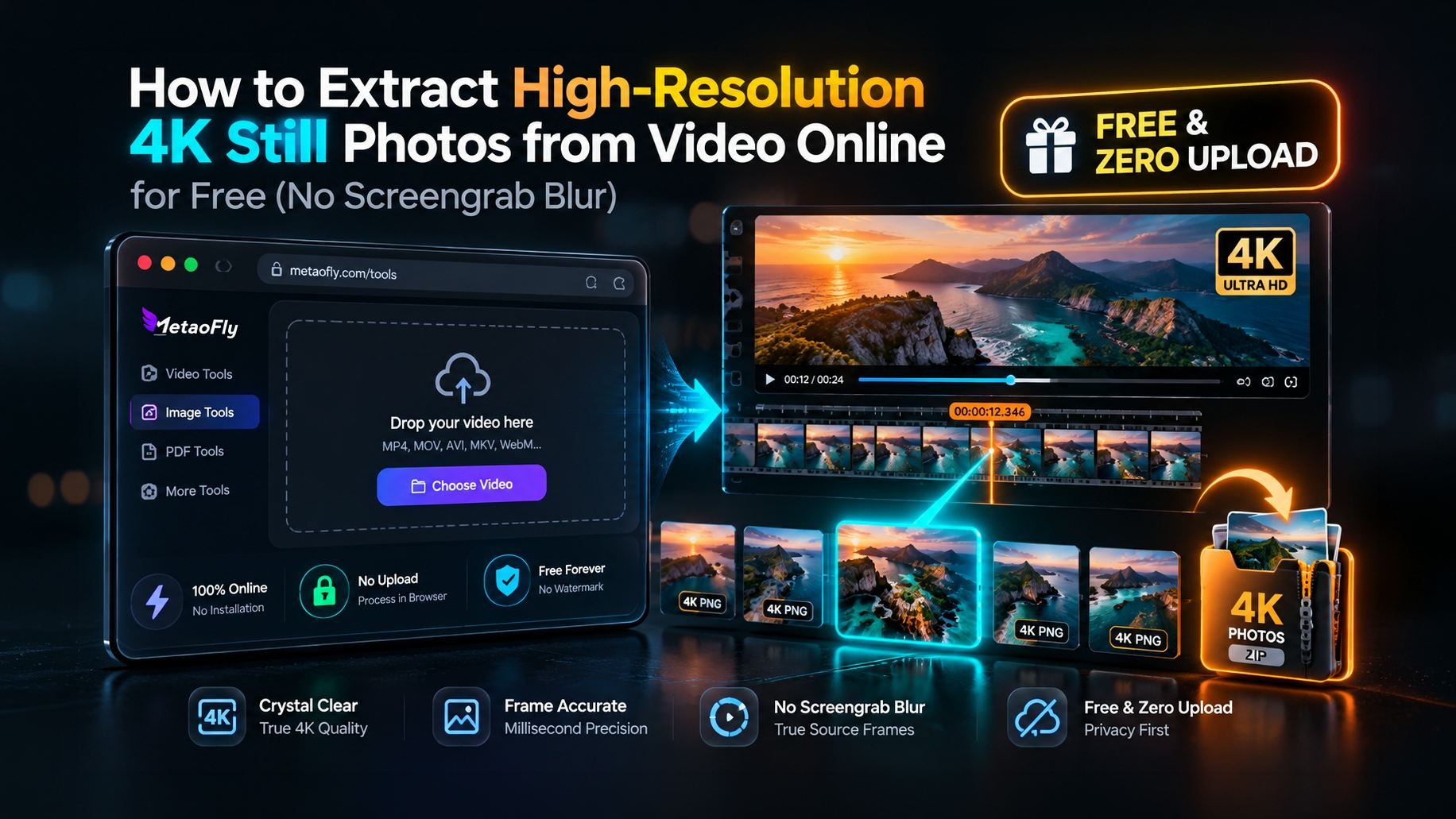
To extract native-resolution still photos from a 4K video without screengrab blur or multi-gigabyte upload delays, mount your video file directly into a client-side HTML5 Canvas frame grabber. Instead of snapping a downscaled desktop screenshot or waiting 20 minutes for a cloud converter to ingest a 2 GB drone clip, MetaoFly Video Frame Extractor & Snapshot Studio reads your local MP4, MOV, MKV, or WebM buffer in RAM, micro-seeks to the exact millisecond, and exports lossless 3840 × 2160 px PNG or high-quality JPG stills—or bundles 100+ frames into a timestamped ZIP archive—100% free with zero uploads.
- True Native Pixel Capture (3840 × 2160 px): Bypass display scaling, color-profile clamping, and player UI overlays to achieve lossless video still capture directly from the decoded video frame buffer.
- 3 Precision Extraction Modes: Capture exact moments via Manual Millisecond Scrubbing, sample evenly spaced intervals (extract every n seconds video), or auto-divide any clip into a fixed Total Frame Count (10 to 100 frames) packaged with JSZip.
- Zero File Size Caps & Zero Cloud Uploads: Because your video never leaves your computer’s local memory, a no upload 4k frame grabber handles 4 GB+ action camera and drone files in seconds without server timeouts.
Why OS Screenshots and Cloud Video-to-JPG Sites Ruin 4K Video Stills
Every videographer, drone pilot, and content creator hits the exact same frustration when trying to pull a still frame from high-resolution footage. You shoot a breathtaking 4K 60FPS clip on your DJI drone, GoPro, or iPhone Pro, pause the video at the peak action frame, and try to save that single moment as a photo.
When you search Google to extract frames from video online, you run straight into two broken workflows:
1. The Operating System Screengrab Trap (PrintScreen / Cmd + Shift + 4)
Taking a desktop screenshot of a paused media player is the fastest way to destroy image quality:
- Viewport Downscaling: Even if your video file is native 4K UHD (3840 × 2160 px, or 8.29 megapixels), a standard 1080p laptop monitor or windowed browser player shrinks the displayed frame down to roughly 1280 × 720 px—discarding over 88% of your original pixels before you even press capture.
- OS Display Scaling & Gamma Clamping: Windows ClearType, macOS Retina fractional scaling, and SDR/HDR tone-mapping layers alter pixel sharpness and shift color accuracy.
- Player UI Contamination: Play/pause scrub bars, dark gradient vignettes, and cursor icons frequently burn into the bottom edge of your screenshot.
2. Cloud Upload Caps & Server Timeouts (ezgif.com, clideo.com, freeconvert.com, kapwing.com)
Top-ranking online converters suffer from an even bigger architectural flaw: they force you to upload your entire video file to a remote server before extracting a single frame.
- Ezgif (
ezgif.com/video-to-jpg): Legacy ranker for frame extraction, yet it enforces a strict 100 MB to 200 MB upload ceiling and surrounds the workspace with intrusive display ads. A single 45-second 4K 60FPS drone clip easily weighs 450 MB to 900 MB—crashing immediately on upload. - Clideo & Kapwing (
clideo.com,kapwing.com): Require uploading massive video files over slow residential Wi-Fi, force account logins, and restrict unwatermarked or batch sequence downloads behind monthly paywalls. - FreeConvert & 123Apps (
freeconvert.com,123apps.com): Throttle daily conversion minutes, make you wait in server queues, and lack unified 3-mode extraction (interval vs. exact count vs. millisecond lightbox scrubbing).
A dedicated 4k video to still photo extractor and video snapshot studio online solves both problems simultaneously by reading your local disk file straight into browser memory and painting raw decoded frames directly onto an offscreen HTML5 Canvas.
Under the Hood: HTML5 Video Micro-Seeking, Native Canvas Grabbing & JSZip Architecture
How does the MetaoFly Video Frame Extractor & Snapshot Studio extract 8.29-megapixel lossless frames from multi-gigabyte video containers in seconds without touching a remote server?
MetaoFly executes a deterministic three-stage client-side pipeline:
- Zero-Copy Local Object URL Mounting: When you drop an
MP4,MOV,MKV,WebM, orAVIfile onto the stage, the browser’s nativeURL.createObjectURL()mounts the file directly from your SSD into an internaldecoder buffer. Zero bytes travel across your internet connection. - Deterministic
html5 video micro seekingLoop: Rather than playing the video in real time (which would take 10 minutes to capture a 10-minute clip), MetaoFly programmatically stepsvideo.currentTimeacross your chosen timestamps and listens for the hardware decoder’sseekedevent. - Native-Resolution
CanvasRenderingContext2D.drawImage(): Once the hardware decoder locks onto the exact frame, the engine initializes an offscreen HTML5 Canvas sized strictly tovideo.videoWidth×video.videoHeight(e.g., 3840 × 2160 px for 4K, or 1920 × 1080 px for Full HD)—completely independent of your monitor’s screen size or browser zoom level. It draws the uncompressed frame buffer onto the canvas and serializes it into a losslessimage/pngor high-bitrateimage/jpegBlob. - In-Memory DEFLATE Archive Assembly (
jszip batch frame download): For batch extractions, JSZip bundles every captured frame with timestamp-indexed filenames (frame_0001_00m02s500ms.png) into a single clean ZIP file in local RAM.
Frame Sampling Math & 3-Mode Extraction Lookup Table
When batch-extracting frames for 3D reconstruction, stop-motion reference, or dataset creation, total extracted frame count N_{frames} is governed by clip duration T_{sec} and sampling interval \Delta t:
Use this 3-Mode Extraction Decision Matrix to pick the right mode inside MetaoFly for your exact workflow:
Step-by-Step: How to Extract 4K Still Photos & Batch Sequences in Seconds
MetaoFly is engineered with a clean 2-Column Desktop / 1-Column Mobile Layout—with your live 4K video viewport and interactive frame gallery on the Left Stage and extraction mode controls, format toggles, and batch ZIP packagers on the Right Panel—plus a Zero-Popup In-Field Download.
Step 1: Open the Studio & Mount Your Local Video File
Navigate to the MetaoFly Video Frame Extractor & Snapshot Studio ↗. Drag and drop your MP4, MOV, MKV, WebM, or AVI file onto the Left Interactive Stage. Whether it is a 15 MB screen recording or a 3.8 GB 4K drone flight, it mounts instantaneously at local SSD read speed.
Step 2: Select Your Output Image Format (Lossless PNG vs. High-Quality JPG)
In the Right Fine-Tuning Panel, choose your target image encoding:
- Lossless PNG (
mp4 to png sequence zip/mov to png sequence browser): Preserves 100% of decoded pixel detail with zero JPEG compression artifacts—essential for print enlargements, forensic plate/text inspection, and photogrammetry feature matching. - High-Quality JPG (
convert video to jpg frames): Produces 70% to 80% smaller file sizes while retaining crisp visual fidelity—ideal when exporting 100+ frames for rapid web previews or contact sheets.
Step 3: Capture Single Millisecond Stills or Run a Batch Sequence Extraction
Choose your extraction workflow in the Right Panel:
- For Single Hero Stills: Scrub the Left Stage timeline to your target action moment, fine-tune to the exact millisecond, and click Capture Frame. Your still immediately appears in the Interactive Frame Gallery below the player with a millisecond timestamp badge (
00:01:14.320). - For Automated Image Sequences: Switch to Interval Mode (e.g.,
1 frame every 1.0s) or Total Count Mode (e.g.,50 frames) and click Extract Frames. Watch the progress bar step rapidly through your video in local RAM.
Step 4: Inspect in Lightbox, Copy to Clipboard, or Download Batch ZIP
Click any captured thumbnail in the gallery to open the Lightbox Inspector at full resolution, click Copy to Clipboard to paste a frame straight into Photoshop, Figma, or Slack, download individual photos, or click “Download All as ZIP” to save your complete timestamped sequence in one click.
The 30-Second F12 DevTools Privacy Verification Test
Dashcam incidents, corporate security camera footage, legal depositions, and unreleased product films should never be uploaded to ad-supported third-party websites. Verify that MetaoFly runs 100% locally inside your browser RAM in 30 seconds:
- Open MetaoFly Video Frame Extractor & Snapshot Studio ↗ in Chrome, Edge, Brave, or Firefox.
- Press
F12(Windows/Linux) orCmd + Option + I(Mac) to open Developer Tools and click the Network tab. - Enable Preserve log and click the clear icon (
🚫) to wipe initial page-load entries. - Drop a 500 MB or 2 GB video file onto the stage, extract 10 PNG frames, and download the ZIP.
- Inspect the Network Log: You will see zero outbound
POSTvideo-upload requests and 0 bytes transmitted over the internet. Every seek operation, canvas draw, and JSZip archive build executes strictly inside your device’s local memory.
Head-to-Head Competitor Comparison Matrix (2026)
How does MetaoFly stack up as a mkv frame extractor free and no upload 4k frame grabber against Ezgif, Clideo, Kapwing, and FreeConvert?
3 Real-World Industry Playbooks & Exact Parameter Presets
1. Drone Pilots & Action Camera Photographers (drone footage photo extractor / action camera Gopro frame grabber)
- The Challenge: Shooting 4K 60FPS aerial sweeps over coastlines, real estate properties, or mountain biking trails where the perfect golden-hour composition lasts for only 3 frames—and the raw
.MP4or.MOVfile weighs 2.4 GB. - Exact Studio Preset: Mount the 2.4 GB file directly from your SD card reader into MetaoFly → Select Manual Millisecond Scrubbing → Scrub to the peak composition → Set Output Format to Lossless PNG → Click Capture Frame and download a crisp 3840 × 2160 px (8.3 MP) print-ready still in 2 seconds with zero upload wait time.
2. 3D Photogrammetry, Gaussian Splatting & AI Dataset Engineers (photogrammetry video to image sequence / ai training dataset frame splitter)
- The Challenge: Converting a 60-second walk-around video of a physical object or architectural interior into an evenly overlapping image dataset for COLMAP, RealityCapture, 3D Gaussian Splatting, or LoRA model fine-tuning.
- Exact Studio Preset: Load your walk-around clip → Switch to Interval Mode → Set sampling step to
0.5s(yields 120 crisp frames with 70%–80% spatial overlap) → Select Lossless PNG (avoids JPEG block artifacts that confuse photogrammetry feature detectors) → Click Extract Frames → Click Download All as ZIP (jszip batch frame download).
3. YouTube Creators & Forensic Video Analysts (youtube thumbnail frame extractor / forensic video frame analyzer)
- The Challenge: Pulling an expressive facial reaction frame for a high-CTR YouTube thumbnail without motion blur, or isolating the single sharp frame where a vehicle license plate enters a dashcam’s focal plane.
- Exact Studio Preset: Load your studio recording or dashcam clip → Use Manual Millisecond Scrubbing to step frame-by-frame across the expression or license plate pass → Capture 3–4 candidate frames into the Interactive Frame Gallery → Open the Lightbox Inspector to compare micro-sharpness at 100% zoom and copy the sharpest winner straight to your clipboard.
Pro Troubleshooting: 3 Technical Video Frame Extraction Pitfalls Solved
- Motion Blur on Extracted Frames Even at 4K Resolution: If you shoot video at 24FPS or 30FPS using a cinematic 180° shutter rule (1/50s or 1/60s shutter speed), fast-moving subjects will naturally exhibit motion blur inside every individual frame—no frame extractor can remove physical shutter blur after the fact. Fix: When filming footage specifically to pull still photos later, shoot at 60FPS or 120FPS with a faster shutter speed (1/250s to 1/1000s) so every individual frame freezes motion like a DSLR camera.
- Browser Compatibility with 10-Bit HEVC (H.265)
.MOVor.MKVFiles: Standard 8-bitH.264(AVC) andVP9/AV1videos decode hardware-accelerated in every modern browser. However, if you recorded in 10-bitHEVC(H.265) or Apple ProRes on a cinema camera and your browser displays a black preview frame, your browser’s built-in media decoder lacks that proprietary codec license. Fix: Either remux/transcode the container to universalH.264 MP4first using our MOV / MKV / WebM to MP4 Instant Converter ↗, or step through the raw file offline on Windows using our companion Piludi – Media Player. - Browser RAM Spikes When Batch-Exporting 200+ Uncompressed 4K PNGs: A single uncompressed 3840 × 2160 px RGBA canvas frame consumes roughly 33 MB of raw memory, and a lossless 4K PNG blob averages 8 MB to 14 MB. Extracting 200 4K PNGs simultaneously requires \sim 2.5 GB of free browser RAM. Fix: For sequences over 100 frames at 4K, switch the output format to High-Quality JPG (cutting memory footprint by 75%), or split long clips into 30-second batches.
Complete Your Video & Still-Image Pipeline (Internal Tools & Piludi Desktop Bridge)
- Optimize Extracted PNG Stills to Lightweight WebP for Your Blog or Store: Shrink 8 MB extracted 4K PNG stills down to 150 KB WebP images for fast web publishing in our Image Converter & Compressor ↗.
- Extracted a Frame from 1080p Video That Needs 4K Print Clarity? Upscale and sharpen soft video snapshots by 2× or 4× using GPU bicubic shaders and high-pass filtering in our AI Image Upscaler, Unblur & Photo Enhancer ↗.
Frequently Asked Questions (FAQ)
Why is extracting a frame in MetaoFly sharper than taking a screenshot?
An operating system screenshot captures your scaled monitor viewport—throwing away up to 88% of a 4K video’s pixels and baking in display color shifts or player controls. MetaoFly reads the video’s native decoded frame buffer directly onto an offscreen HTML5 Canvas at full source dimensions (3840 × 2160 px), preserving 100% of the original pixel detail.
Is there a file size limit for 4K drone or GoPro videos?
No. Unlike cloud converters such as Ezgif (100 MB–200 MB limit), MetaoFly mounts your video locally from your hard drive into browser memory with zero network uploads. You can extract stills from 2 GB, 5 GB, or 10 GB MP4, MOV, and MKV files as fast as your computer can read the disk.
How can I extract one frame every second from a video and download them all at once?
Open MetaoFly Video Frame Extractor & Snapshot Studio, load your video, switch the Right Panel to Interval Mode, select 1.0s (or 0.5s, 2.0s, 5.0s), and click Extract Frames. Once finished, click “Download All as ZIP” to save the entire timestamped image sequence in one archive.
Does MetaoFly support extracting frames from iPhone .MOV and OBS .MKV videos?
Yes. MetaoFly supports MP4, MOV, MKV, WebM, and AVI containers directly in your browser. As long as your browser supports the underlying video codec (such as H.264/AVC, VP9, or AV1), you can scrub and capture lossless PNG or JPG stills immediately.
Are my private videos or dashcam recordings uploaded to a server?
No. Every video seek, frame decode, canvas capture, and JSZip archive build runs 100% locally inside your browser’s RAM. Zero bytes of your video or extracted images ever leave your computer.