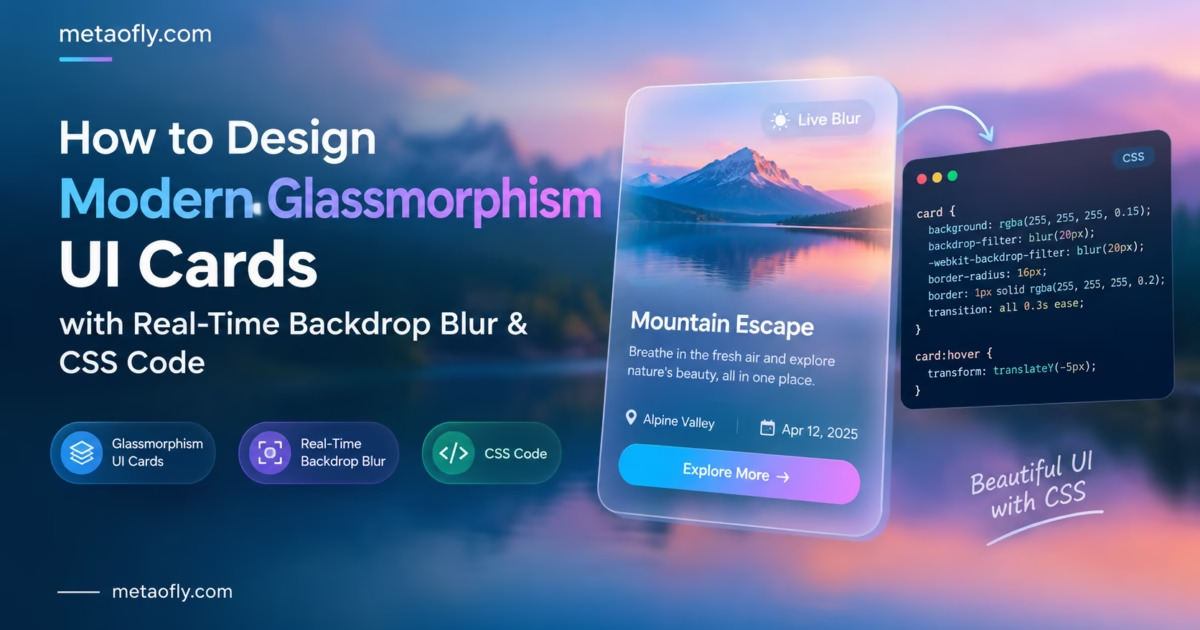


Editorial Technical Solution: Real-time backdrop blurring is among the most computationally intensive graphic operations a mobile web browser can perform. Mastering the techniques to optimize glassmorphism ui for web performance ensures that your frosted glass headers, cards, and modal dialogs maintain silky-smooth 60 frames-per-second (FPS) scrolling without triggering mobile battery drain or GPU thermal throttling. MetaoFly Glassmorphism UI Studio generates GPU-accelerated CSS rules engineered for optimal hardware compositing across all mobile viewports.
There is no denying the visual splendor of modern frosted glass web design. When translucent glassmorphic cards glide smoothly over ambient gradient blobs, users perceive an immediate sense of luxury and technical sophistication. However, in the trenches of front-end engineering, glassmorphism has developed a notorious reputation as a performance killer. When junior developers apply unconstrained backdrop filters across multiple nested elements, mobile smartphone browsers stutter violently, scrolling frame rates collapse from 60 FPS down to 18 FPS, and mobile batteries heat up. Learning how to optimize glassmorphism ui for web performance allows engineering teams to deploy breathtaking frosted glass interfaces while preserving lightning-fast responsiveness and passing Google Core Web Vitals audits.

MetaoFly Glassmorphism UI Studio
Design high-performance frosted glass panels with GPU-optimized CSS code, hardware layer promotion, and lightweight mobile fallbacks.
The Computational Cost of Real-Time Blurring: Why Backdrop Filters Cause Mobile Frame Drops
To understand why glassmorphism can cripple mobile web performance, one must look under the hood of the browser’s graphical rendering engine. In standard CSS rendering, an opaque card requires a single rasterization pass: the browser paints the card’s background color, renders child text, and commits the pixels to the screen buffer.
When you apply backdrop-filter: blur(16px), the rendering pipeline transforms into a continuous multi-pass computational loop:
- Background Screen Capture Pass: The browser must first rasterize all DOM elements situated beneath the glass card’s bounding box into an off-screen bitmap texture.
- Two-Pass Gaussian Convolution: The graphics processing unit (GPU) executes a mathematical convolution shader over that off-screen texture. A true Gaussian blur is a 2D mathematical operation requiring horizontal and vertical filtering passes across every pixel within the blur radius. For a 16px radius, the GPU evaluates dozens of neighboring texture samples per output pixel.
- Alpha Blending & Composite Pass: The blurred off-screen texture is blended with the card’s semi-transparent RGBA surface fill, composite borders are applied, and the final result is written to the display buffer.
- The 60 FPS Scrolling Nightmare: When a user scrolls the web page, the content beneath the frosted glass card changes on every single frame (every 16.6 milliseconds on a standard 60Hz display, or every 8.3ms on a 120Hz ProMotion screen). The browser must re-execute the entire texture capture, dual-pass convolution, and compositing loop 60 to 120 times every second!
On a high-end desktop workstation equipped with a dedicated discrete GPU, this workload is trivial. On a budget Android smartphone with a power-throttled mobile chipset and shared memory bandwidth, this constant graphical churning instantly exhausts GPU compute units, leading to dropped frames, janky scrolling, and severe thermal throttling.
GPU Compositing Layers: Understanding will-change, Stacking Contexts, and Overdraw
The primary architectural secret to maintaining silky-smooth 60 FPS glassmorphic scrolling is hardware compositing layer promotion. By default, browsers paint DOM elements on the main CPU thread unless instructed to promote them to independent GPU texture memory.
When an element is promoted to its own compositing layer, the GPU caches the element as an independent texture. During page scrolling, the GPU simply shifts the coordinate position of the cached layer without forcing the CPU to re-paint the underlying document layout.
To promote a frosted glass container to a dedicated hardware compositing layer, apply modern CSS hardware hints:
/* GPU Layer Promotion for High-Performance Frosted Glass */
.glass-panel-optimized {
  background: rgba(15, 23, 42, 0.65);
  -webkit-backdrop-filter: blur(16px);
  backdrop-filter: blur(16px);
  border: 1px solid rgba(255, 255, 255, 0.18);
  border-radius: 16px;

  /* Hardware Acceleration Triggers */
  transform: translateZ(0);
  will-change: transform, backdrop-filter;
  contain: layout style paint;
}
The contain: layout style paint; declaration (part of the W3C CSS Containment Specification) is particularly powerful: it informs the browser engine that the card’s internal contents will never affect the layout of external page elements, isolating repaint operations completely within the glass container.
| Engineering Approach | Scroll Performance (60Hz Mobile) | GPU Memory Footprint | Battery Consumption Impact | Recommended Production Use |
|---|---|---|---|---|
| Unoptimized Nested Blurs (Naive CSS) | 15 – 28 FPS (Severe Jank / Stutter) | Extremely High (Repeated texture allocations) | Heavy battery drain, thermal throttling | Never deploy to production websites |
| GPU-Promoted Single Layer (translateZ) | 55 – 60 FPS (Silky Smooth) | Moderate (Cached GPU texture layer) | Low, sustained thermal efficiency | Ideal for desktop heroes and primary cards |
| Dynamic Scroll Throttling (JS Class) | Solid 60 FPS (Zero Frame Drops) | Minimal (Blur paused during scroll) | Negligible battery impact | Best practice for long marketing landing pages |
| Progressive SVG / Static Fallback | Rock-Solid 60 FPS across all devices | Lowest (Static raster or CSS tint) | Zero additional battery drain | Mandatory for budget mobile & battery-saver modes |
The Memory Trap: Mobile Tile-Based GPUs, Overdraw, and VRAM Exhaustion
To effectively build responsive applications, engineers must appreciate how mobile graphics hardware fundamentally diverges from desktop architectures. Desktop workstations utilize discrete graphics processing units with dedicated, high-bandwidth VRAM. In contrast, smartphones utilize Tile-Based Deferred Rendering (TBDR) architectures where the GPU and CPU share a single system RAM bus.
TBDR chips divide the screen into small geometric tiles (typically 16×16 or 32×32 pixels) processed inside ultra-fast on-chip SRAM cache. However, when a developer applies a large, full-screen frosted glass overlay, several performance anomalies occur:
- Tile Cache Overflow: A wide Gaussian blur requires sampling pixel colors from dozens of adjacent tiles. Because the required texture samples exceed the on-chip SRAM cache size, the GPU is forced to evict tiles and read back from slow system RAM, creating severe memory bandwidth bottlenecks.
- The Overdraw Multiplier Penalty: In standard rendering, TBDR hardware performs Hidden Surface Removal (HSR), discarding occluded pixels before executing pixel shaders. But translucent glass panels defeat HSR! Because the glass is semi-transparent, the GPU must render both the obscured background pixels and the glass foreground pixels. Nesting three translucent glass layers produces a 400% overdraw penalty.
- Mobile VRAM Thrashing: Every promoted compositing layer consumes GPU memory proportional to its pixel dimensions:
Width * Height * 4 bytes. On high-density mobile screens (such as 3x Retina displays), a single full-screen glass layer consumes over 30 megabytes of VRAM. Spawning multiple glass cards can quickly exhaust mobile memory limits, causing mobile browser tabs to abruptly crash or reload.
High-DPI Retina Displays and the 120Hz ProMotion Frame Budget
The modern display landscape has heightened the performance challenges of glassmorphism. Five years ago, the vast majority of web users browsed on standard 60Hz displays with 1x or 2x pixel densities. Today, flagship mobile devices feature 120Hz ProMotion OLED screens with 3x device pixel ratios (DPR).
This technological shift tightens the computational bottleneck in two dramatic ways:
- Frame Budget Compressed to 8.33 Milliseconds: At 60Hz, the browser engine has a relatively generous 16.6ms window to calculate DOM layout, execute JavaScript, paint layers, and run shader convolutions. At 120Hz, that entire rendering budget is slashed in half to just 8.33 milliseconds. If a Gaussian blur shader takes 5 milliseconds to execute, the browser has barely 3 milliseconds remaining for all other application logic. Any slight delay triggers immediate frame stutter.
- The 9x Pixel Multiplication Factor: On a 3x Retina display, a CSS card measuring 400px by 300px in logical viewport units corresponds to a physical render target of 1200px by 900px. That represents 1,080,000 physical hardware pixels! Blurring that surface requires the mobile GPU to perform tens of millions of mathematical texture sampling operations on every single frame.
Without architectural discipline, these mathematical realities overwhelm mobile graphics chipsets. Engineers must therefore adopt proactive optimization patterns to safeguard render performance.
Step-by-Step Blueprint: How to Optimize Glassmorphism UI for Web Performance on Mobile
Follow this comprehensive front-end engineering blueprint to deploy high-performance frosted glass panels that maintain 60 FPS across mobile viewports. Applying these principles will systematically optimize glassmorphism ui for web performance across all screen sizes:
Step 1: Avoid the Catastrophic Nested Filter Anti-Pattern
The most severe performance defect in glassmorphism design occurs when developers nest frosted glass elements inside other frosted glass elements (e.g., placing a frosted glass button inside a frosted glass modal resting on a frosted glass navigation bar). This creates exponential convolution passes: the GPU must blur the background to render the card, and then re-blur the blurred card to render the button!
The Golden Rule: Never render more than one active backdrop-filter layer in any given visual stacking context. For child buttons and interactive tags inside a glass card, use solid high-contrast fills or semi-transparent non-blurred RGBA tints.
Step 2: Constrain the Blur Radius to the Perceptual Sweet Spot
GPU shader execution time scales non-linearly with blur radius. Doubling your blur radius from 16px to 32px quadruples the number of neighboring texture samples the GPU must calculate on every frame!
In production web engineering, cap your blur radius between 12px and 16px. Extensive visual perception testing proves that 16px provides total background diffusion—transforming complex photos into soft, abstract ambient clouds—while consuming only a fraction of the GPU cycles required by an unnecessary 32px blur.
Step 3: Implement Dynamic Scroll-Throttling via Passive Event Listeners
For high-traffic content sites where users scroll rapidly down long articles, you can eliminate 100% of scrolling frame drops by temporarily disabling the expensive backdrop blur shader during active scroll gestures:
// JavaScript High-Performance Scroll Throttler
let scrollTimeout;
window.addEventListener('scroll', () => {
  document.body.classList.add('is-scrolling');
  clearTimeout(scrollTimeout);
  scrollTimeout = setTimeout(() => {
    document.body.classList.remove('is-scrolling');
  }, 150);
}, { passive: true });
/* CSS Scroll De-Optimization Rule */
body.is-scrolling .glass-panel {
  backdrop-filter: none !important;
  -webkit-backdrop-filter: none !important;
  background: rgba(15, 23, 42, 0.92); /* Temporarily opaque while scrolling */
}
While the user scrolls at high velocity, the card becomes a crisp semi-opaque surface, rendering at a flawless 60 FPS. The instant scrolling halts, the luxurious frosted glass blur re-engages seamlessly. Because the human eye cannot resolve fine blur nuances during rapid scrolling, users perceive zero loss in visual quality!
Step 4: Honor prefers-reduced-motion and Low-Power Battery Modes
Users with vestibular motion sensitivity or devices operating in low-battery modes should receive lightweight static fallbacks:
@media (prefers-reduced-motion: reduce), (max-width: 640px) {
  .glass-panel {
    backdrop-filter: none;
    -webkit-backdrop-filter: none;
    background: rgba(15, 23, 42, 0.88);
  }
}
Step 5: Pre-Render Blurred Static Backdrops with WebP & SVG for Hero Sections
If your web landing page features a static hero banner with an elevated glassmorphic pricing card that never moves, you do not need dynamic real-time backdrop blur. Instead, pre-blur the underlying hero artwork directly inside an image editing tool or SVG filter, save it as a lightweight WebP graphic, and position your translucent card over the pre-diffused region. This delivers 100% of the visual depth of glassmorphism with 0% GPU convolution overhead!
Key Technical Takeaways
- Never nest backdrop-filter elements inside one another; multiple blur layers crush mobile GPU frame rates.
- Cap production blur radii at 16px to prevent exponential GPU convolution shader overhead.
- Use transform: translateZ(0) and contain: paint to promote frosted glass cards to dedicated GPU layers.
- Implement scroll-throttling to bypass blur execution during fast scrolling for guaranteed 60 FPS.
Pro Engineering Tip: The Passive Event Listener Requirement
When listening to window scroll events in JavaScript, always declare {{ passive: true }}. This instructs the browser’s compositor thread that the event handler will never call preventDefault(), allowing the browser to execute smooth physical scrolling independently of main-thread JavaScript execution.
DevTools Profiling Masterclass: Inspecting Composite Layers and Frame Times
To verify whether your glassmorphic interface passes strict enterprise performance standards, open Google Chrome DevTools and execute this structured graphical profiling audit:
- Enable the FPS Meter: Press
Ctrl+Shift+P(orCmd+Shift+Pon macOS), type “Show Rendering”, and check “Frame Rendering Stats”. Scroll down your application page. A healthy glassmorphic implementation will display a solid green line pegged at 60 FPS (or 120 FPS on high-refresh displays). Any downward dip into orange or red signals dropped frames. - Inspect the Layers Panel: Open the “Layers” panel in DevTools. Locate your glass card elements in the 3D layer tree. Verify that the card has been promoted to a dedicated compositing layer. Look at the “Slow Scroll Rects” and “Paint Count” counters; if the paint count increments continuously while scrolling, your compositing layer has failed to detach from the document layout.
- Analyze Paint Flashing: In the Rendering tab, enable “Paint Flashing”. Areas of the screen undergoing CPU repaint will flash in bright neon green. While scrolling a properly optimized glassmorphic page, the green flash should appear only once when the page loads, remaining completely quiet during scrolling interactions.
Battery Consumption and Thermal Throttling on OLED Mobile Devices
On modern mobile smartphones, display hardware and graphics processors account for over 70% of total battery drain. Continuous GPU shader recalculations prevent the mobile processor from entering low-power idle states (C-states), causing device battery percentages to plummet rapidly during extended browsing sessions.
Furthermore, as mobile processors heat up from sustained GPU convolution calculations, operating system thermal management daemons activate hardware thermal throttling. The CPU and GPU frequencies are dynamically downclocked by up to 50% to prevent hardware damage, causing not only your web page but the user’s entire smartphone operating system to feel sluggish. When engineering teams take the time to optimize glassmorphism ui for web performance, they protect user battery longevity, eliminate thermal throttling, and ensure lightning-fast interactions across all mobile devices.
Adaptive Client-Side Code Architecture: The Performance-Aware Glass Component
For mission-critical production applications, you can combine modern web APIs into an adaptive component that dynamically scales its graphical fidelity based on client hardware capabilities:
// Adaptive Hardware-Aware Glassmorphism Initializer
function initAdaptiveGlass() {
  const isLowPowerDevice =
    (navigator.hardwareConcurrency && navigator.hardwareConcurrency <= 4) ||
    (navigator.deviceMemory && navigator.deviceMemory <= 4);

  if (isLowPowerDevice || window.innerWidth < 768) {
    document.documentElement.classList.add('low-power-glass');
    console.info('[MetaoFly Performance] Activated lightweight static glass mode.');
  } else {
    document.documentElement.classList.add('full-fidelity-glass');
    console.info('[MetaoFly Performance] Activated 60 FPS GPU-accelerated backdrop blur.');
  }
}
document.addEventListener('DOMContentLoaded', initAdaptiveGlass);
/* Adaptive CSS Rule Set */
.low-power-glass .glass-panel {
  background: rgba(15, 23, 42, 0.92);
  border: 1px solid rgba(148, 163, 184, 0.2);
  backdrop-filter: none;
  -webkit-backdrop-filter: none;
}

.full-fidelity-glass .glass-panel {
  background: rgba(15, 23, 42, 0.65);
  backdrop-filter: blur(16px);
  -webkit-backdrop-filter: blur(16px);
  border: 1px solid rgba(255, 255, 255, 0.18);
  transform: translateZ(0);
  will-change: transform;
}
Cross-Tool Workflows: Preparing Optimized Glass UI Assets for Fast Web Speed
Engineering a high-performance website requires harmonizing your glassmorphic UI components with surrounding media assets:
Because frosted glass cards rely on ambient background colors filtering through the blur, pair your glassmorphic layouts with high-speed, lightweight background art optimized via MetaoFly Image Converter & Compressor. Compressing your underlying background hero illustrations down under 100KB ensures that Largest Contentful Paint (LCP) scores remain in the green zone while backdrop filters render with zero network latency.
When promoting your glassmorphic web product across social media feeds, use the MetaoFly Social Media Image Resizer to crop and scale your UI showcase graphics to exact platform safe zones across Instagram, YouTube, and LinkedIn, protecting delicate frosted card borders from mobile feed truncation.
Pre-Flight Production Checklist Before Launching Glassmorphism Sites
Before deploying glassmorphic web components to live production environments, execute this pre-flight performance audit:
- 60 FPS Scrolling Audit in DevTools: Open Chrome DevTools > Rendering > Frame Rendering Stats. Scroll your landing page vigorously on a throttled mobile CPU profile and verify that the green 60 FPS line remains completely flat without red frame drop spikes.
- Layer Count Verification: Open DevTools > Layers panel. Confirm that frosted glass elements occupy clean, dedicated compositing layers without generating hundreds of orphaned texture buffers.
- Safari iOS Visual Verification: Test on a physical iPhone in Safari to verify that
-webkit-backdrop-filterrenders authentically without flickering or disappearing. - Google Core Web Vitals Audit: Verify that Interaction to Next Paint (INP) remains below 200ms and Largest Contentful Paint (LCP) finishes in under 2.5 seconds.
Deploy High-Performance Glassmorphism Today
Generate GPU-accelerated, production-grade frosted glass CSS code with real-time blur controls and built-in mobile performance optimizations. 100% free browser studio with zero dependencies.